

Workflow Parameters
Configure workflow input fields and understand how parameters are used in Run and Run Test.
Workflow parameters are the input fields users fill before starting a workflow run.
You define them once in the editor, then the same form is shown in Run and Run Test dialogs.
Note: Workflow values are passed as
argsinput to the Start node during runtime.
Where to Configure Workflow Parameters
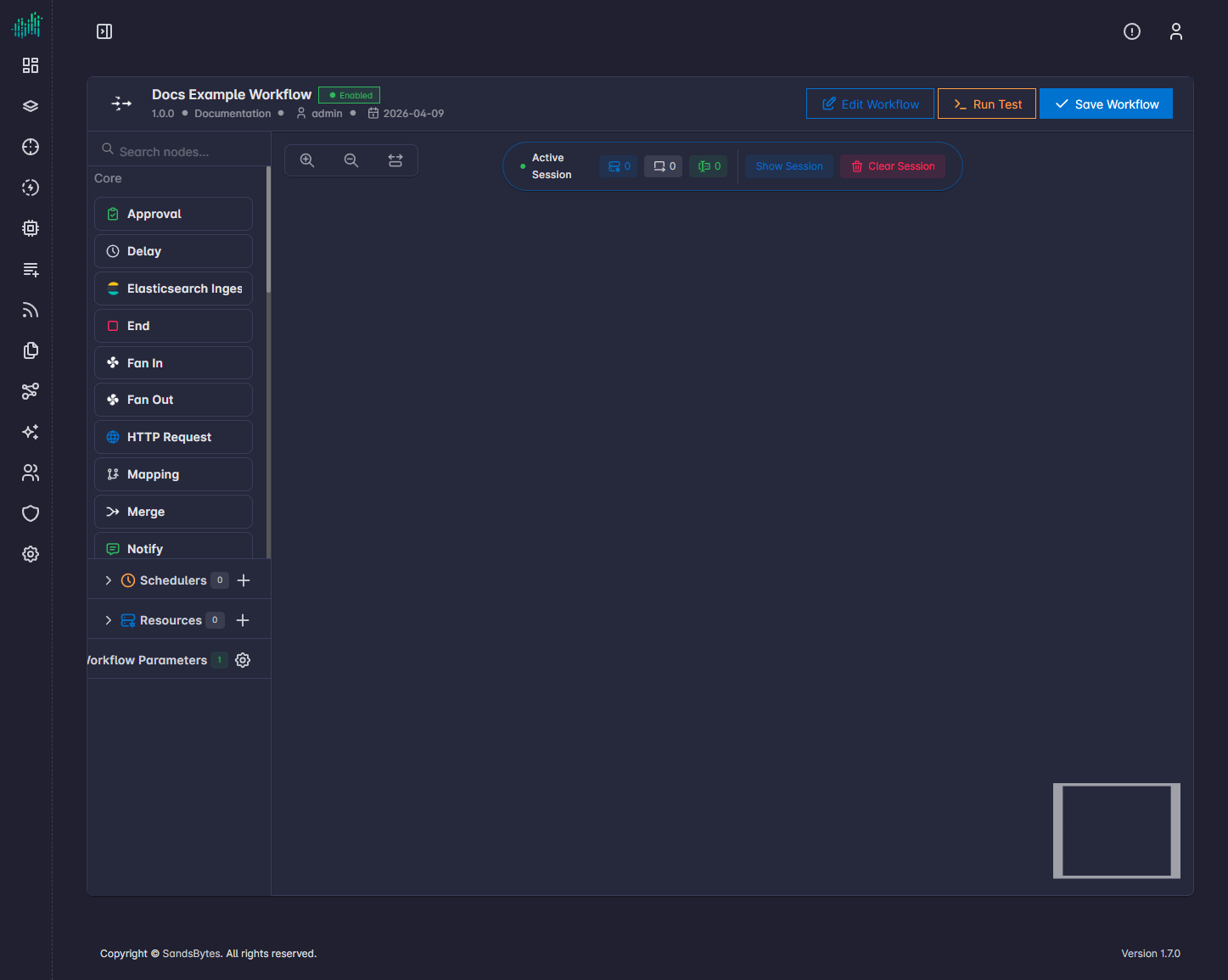
In the workflow editor, parameters are managed from the left sidebar under Workflow Parameters.
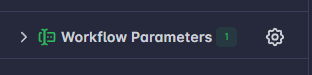
Click the gear button next to Workflow Parameters to open the configuration dialog.
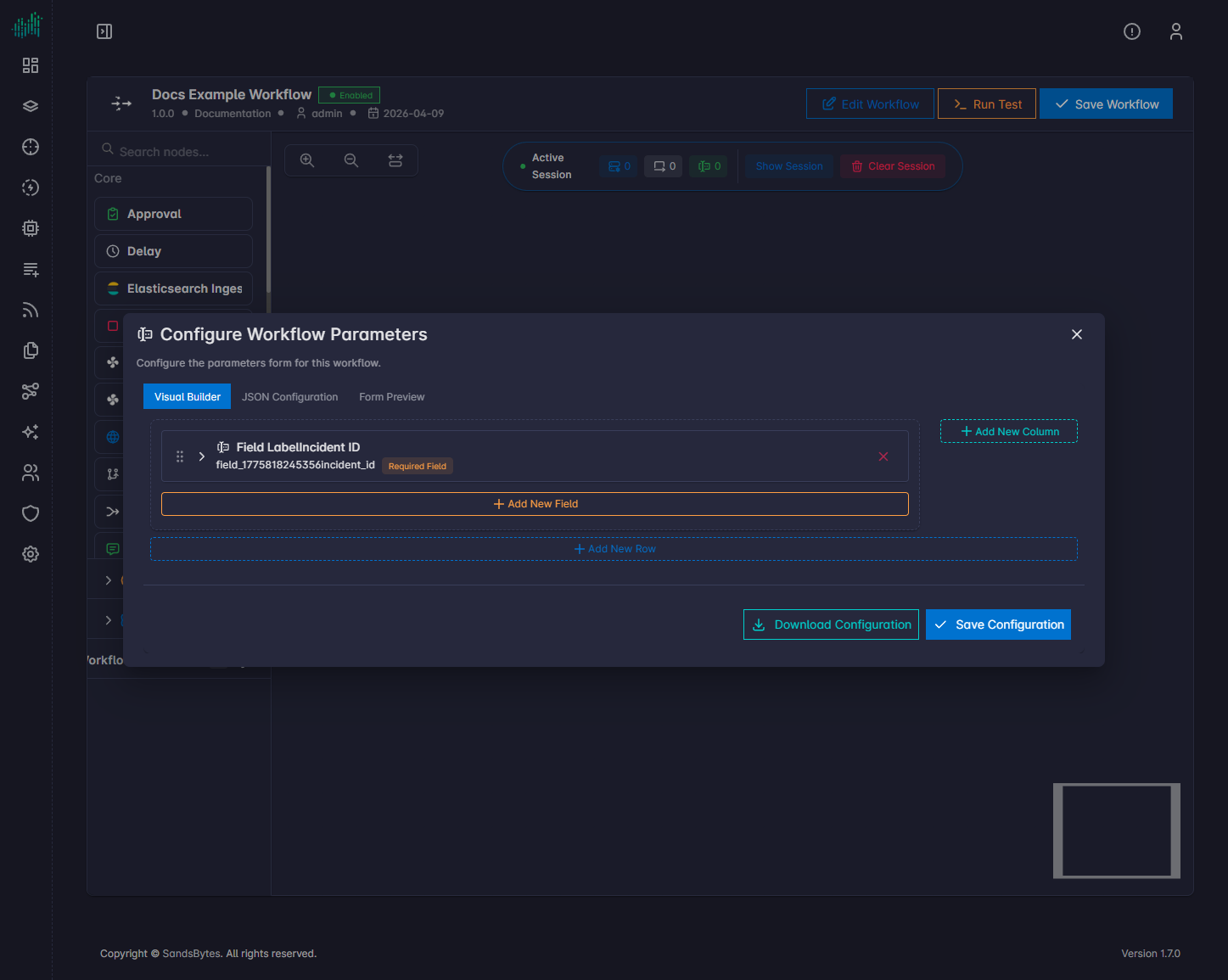
Configure the Parameters Form
When you open the configuration dialog, you can build and maintain the run form used by this workflow.
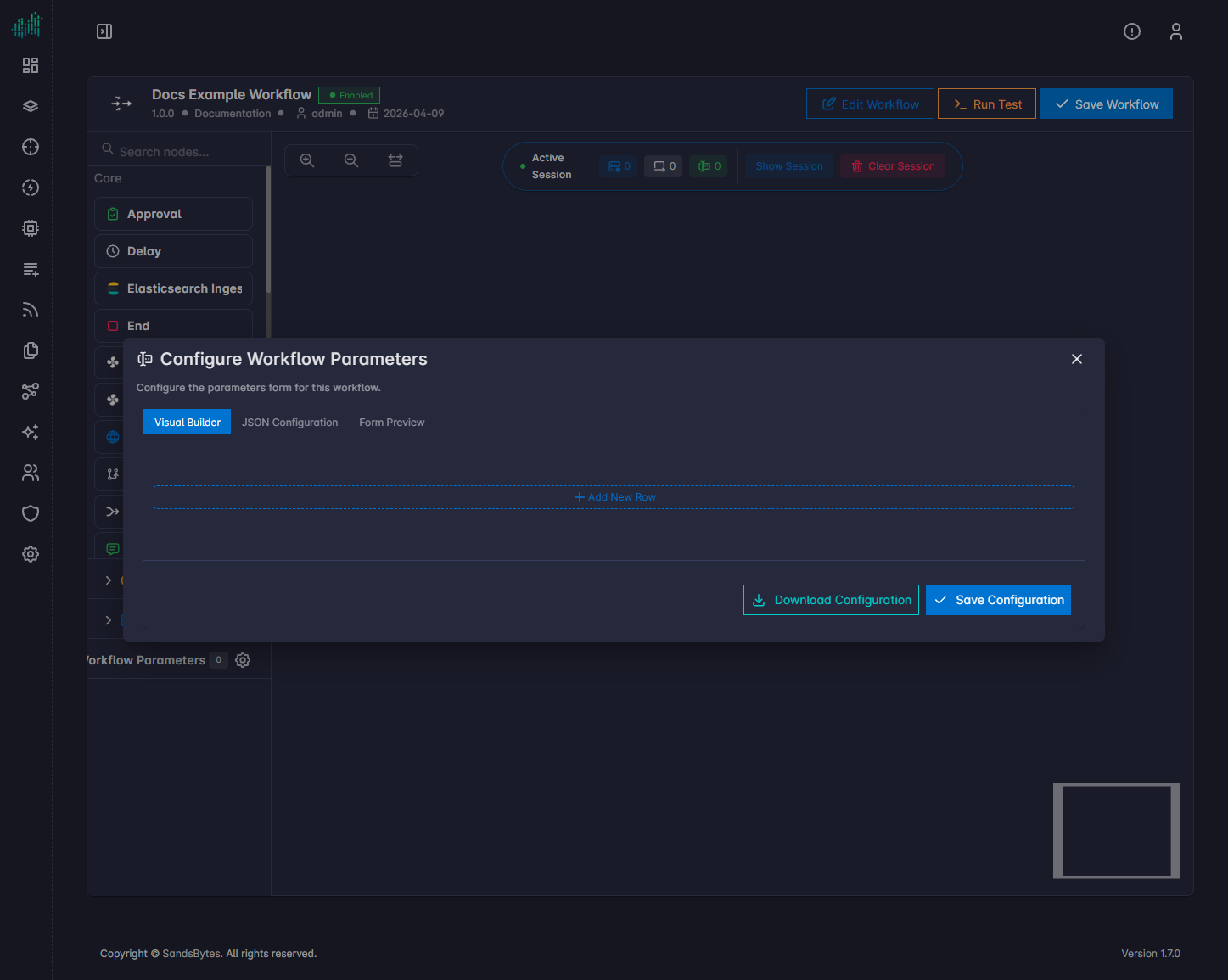
Tabs in the Configuration Dialog
- Visual Builder: add rows, columns, and fields using the UI.
- JSON Configuration: edit the form definition directly as JSON.
- Form Preview: check how the final input form looks to users.
Recommended Build Flow
- Start in Visual Builder.
- Click Add New Row.
- Click Add New Field.
- Fill the field details (for example label, key/name, type, required, placeholder/default).
- Click Save for that field entry. (IMPORTANT)
- Repeat for other fields.
- Click Save Configuration to save the workflow parameter form.
Build Parameters in Visual Builder
Use the Visual Builder controls to create your form layout.
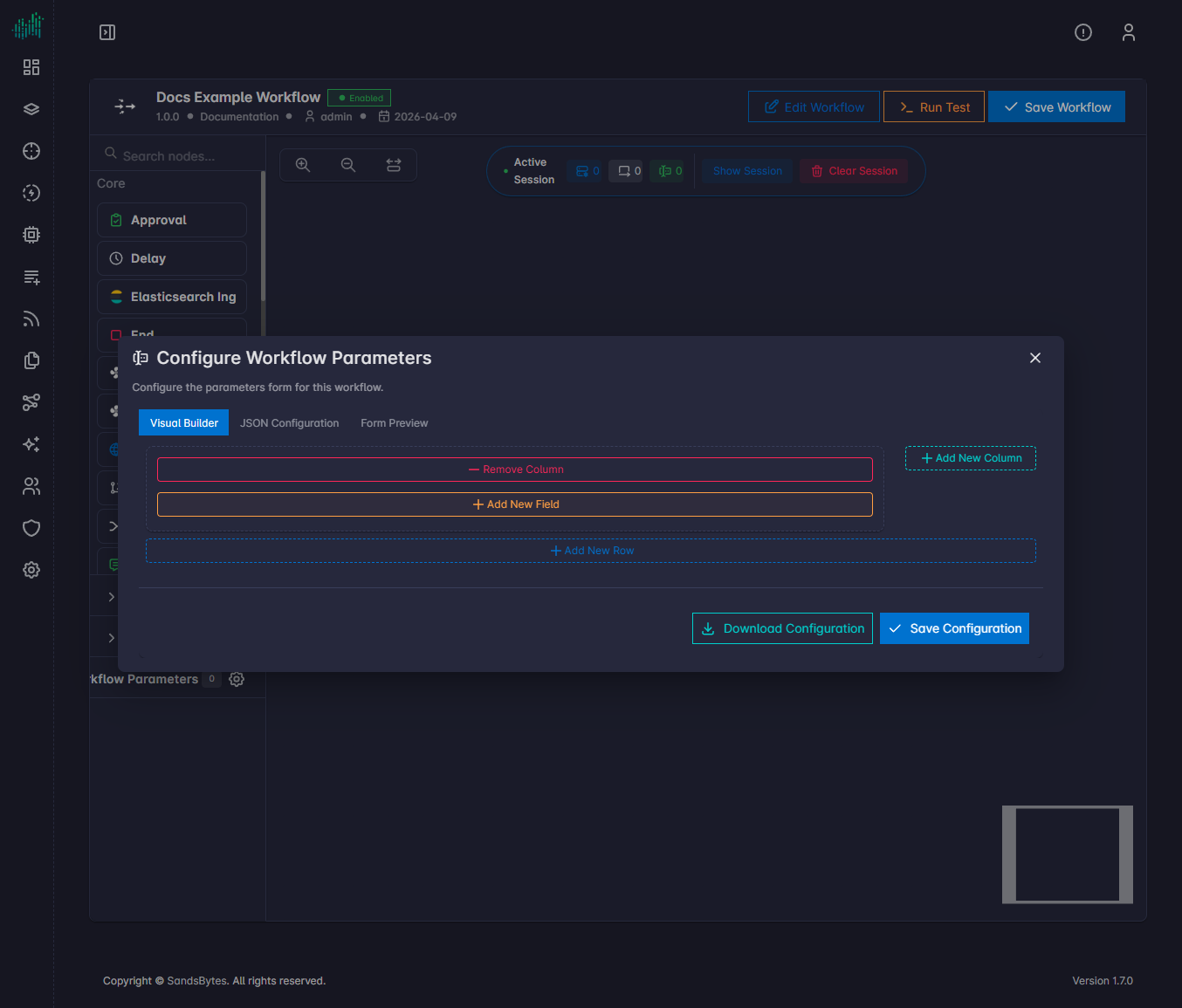
After adding a field, fill in its configuration and save that field (don't forget to save the field configuration).
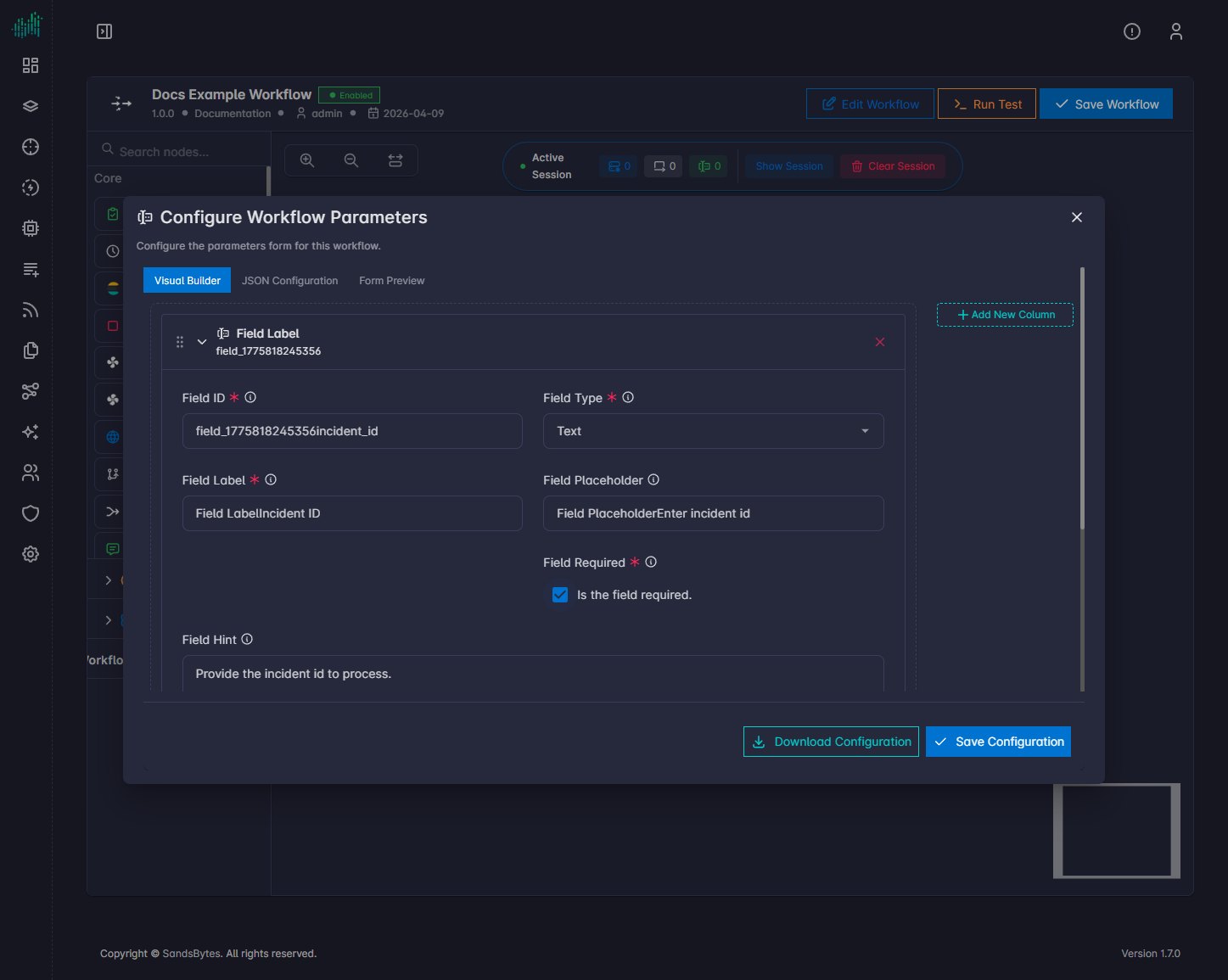
Then save the field first, and use Save Configuration to persist the full workflow parameters form.
Practical guidance:
- Keep the form short and focused on what the workflow truly needs.
- Prefer descriptive labels (what the user sees) and predictable keys (what nodes consume).
- Group related fields in the same row/section when it improves readability.
- Add helper text/placeholders when a value format might be unclear.
- Important: field data is not kept unless you save each field first, then save the full configuration.
Confirm Parameters Were Saved
When Save Configuration succeeds, the Workflow Parameters count in the sidebar updates (for example from 0 to 1).
How Workflow Parameters Are Used During Runs
After parameters are configured and saved:
- The same parameter form is shown when a user starts Run Test.
- The same parameter form is shown when a user starts a normal Run.
- The submitted values are attached to that run and used by workflow nodes.
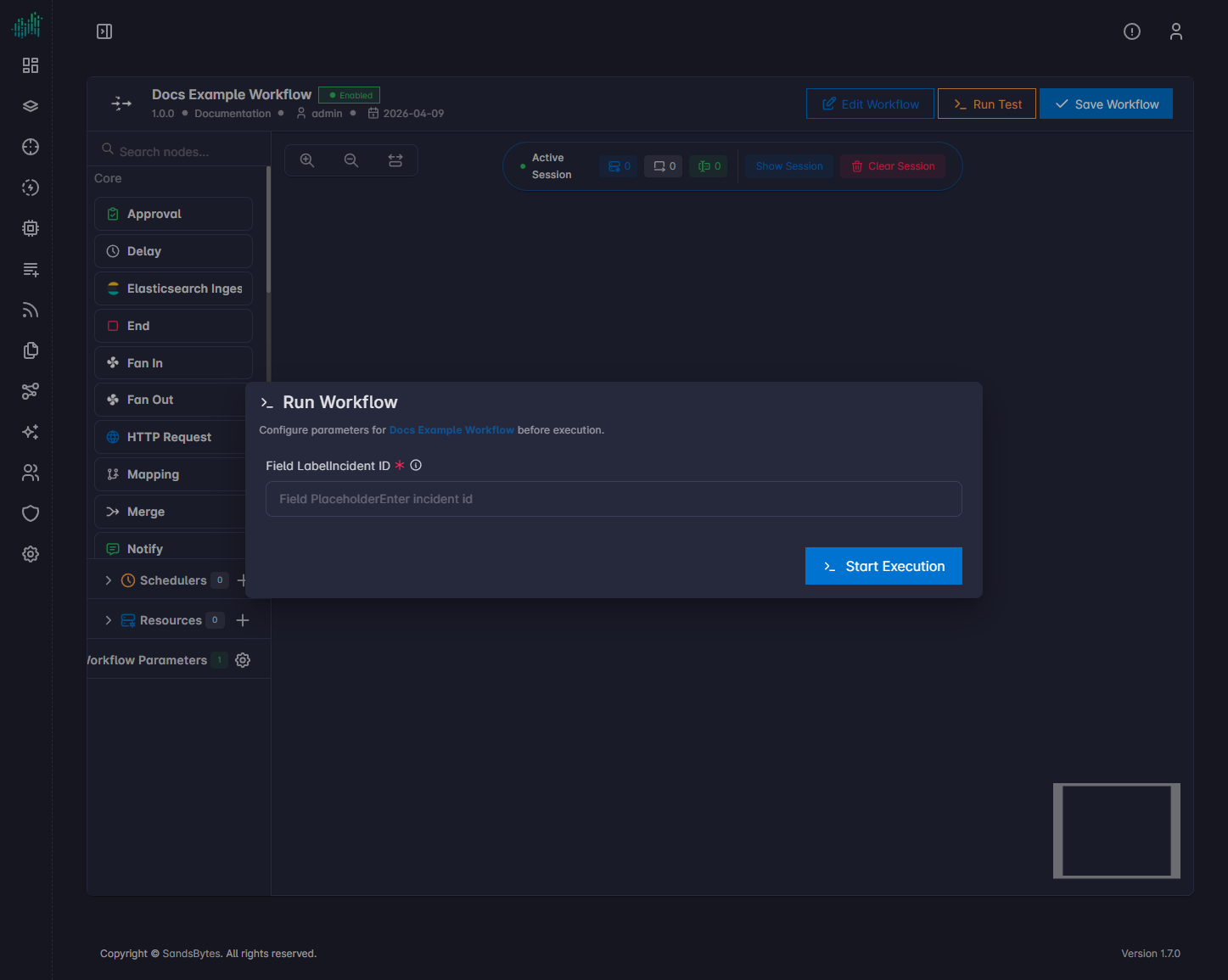
If no parameters are configured, the run dialog opens without input fields.