
Workflow Approvals
The approval component covers where approvals show, how approval steps are defined, and how to approve or reject waiting runs.
Some workflows pause at steps that need a person to approve or reject before execution continues. This guide describes what you see in the app and how to act on those steps.
Note: For starting runs, status meanings, and the Workflow runs list, see the Workflow execution and monitoring guide.
Defining an Approval Step
To add a human gate in the workflow editor:
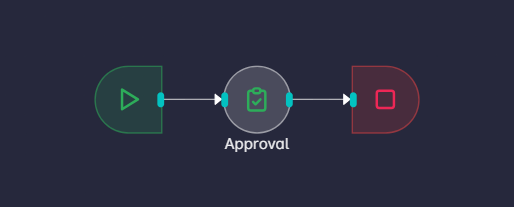
- Open the workflow on the canvas and add an Approval node from the sidebar (under Nodes).
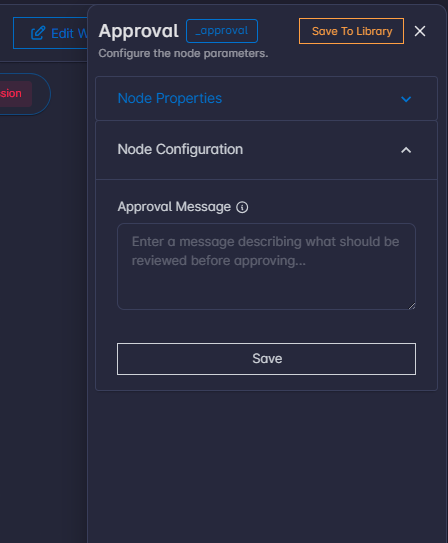
- Optionally set Approval Message; that text is shown to reviewers when the step waits for a decision.
- Connect the node’s input from the previous step and its output to the next step, following your graph.
Note: For the full field list, handles, and behavior summary, see Approval (node reference).
Running Workflow with Approval Nodes
Run Workflow dialog
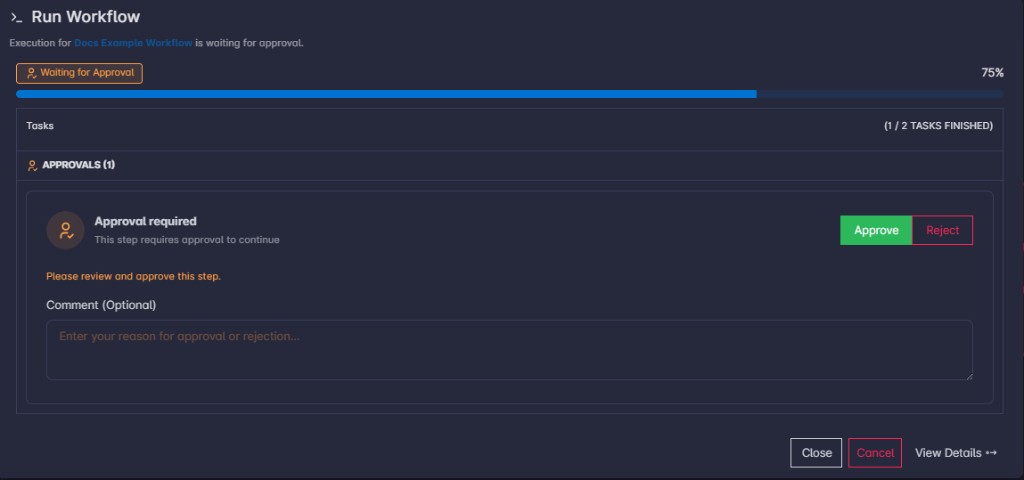
After you submit the parameter form and the run starts, if the execution hits an Approval node, the Run Workflow dialog will show the request for approval or reject.
Workflow run detail page
Open the run from View Runs (choose a row and open details), or use View Details from the run dialog.
- The left column lists TASKS. Tasks waiting for your decision are marked Approval Pending and stand out with a warning-style accent.
- Select a task to load its details on the right. When that task involves approval, an APPROVAL section appears with the same kind of information and actions as in the dialog (for that selected task only).
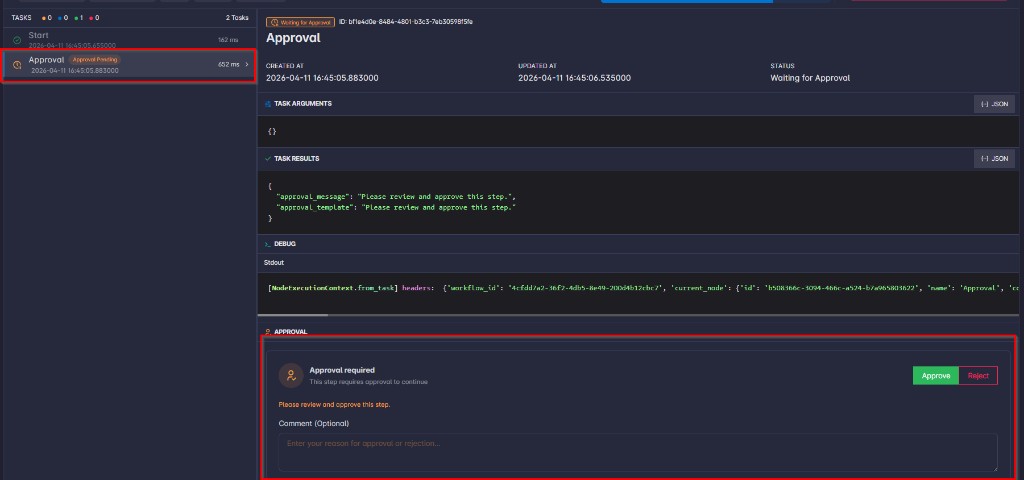
Multiple Approval Steps in One Run: - In the Run Workflow dialog, APPROVALS (N) can show more than one card. Each pending card is a separate step awaiting a decision. Act on each one that applies to you, in line with your team’s process.
- On the workflow run detail page, switch between tasks in the TASKS list to see each step’s own APPROVAL state (pending, approved, or rejected).
Choose One Action:: - Approve — allows the workflow to continue past this step (green / primary button).
- Reject — records a rejection for this approval step (outlined red button).
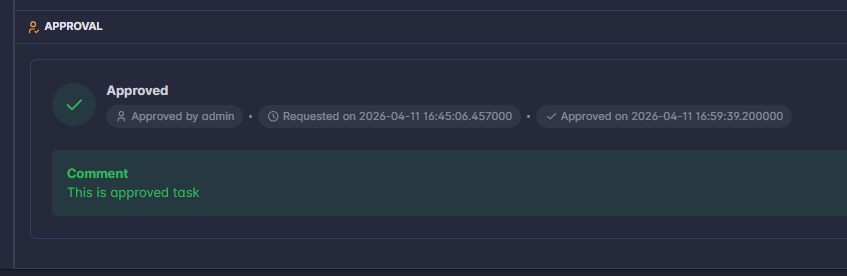
Approved
If the task is approved, the approval window will be changed to Approved. If there is any comment added to the approval, it will be displayed.
If you (or another approver) saved a comment, it appears under a Comment heading.
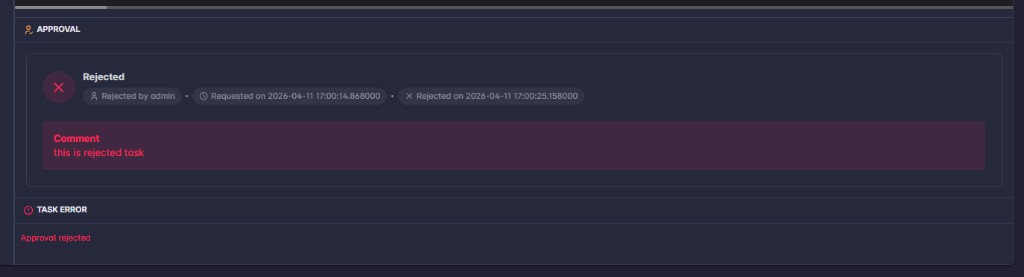
Rejected
If the task is rejected, the approval window will be changed to Rejected. If there is any comment provided for the rejection, it will be displayed.