

Get Started
Create a case
Open a new investigation from the Cases page.
A case is the workspace for one incident. Create it before you upload packages, hunt, or write findings.
Create a case
- Open Cases in the sidebar (
/UI/cases/list). - Click Create. The form opens at
/UI/cases/create.
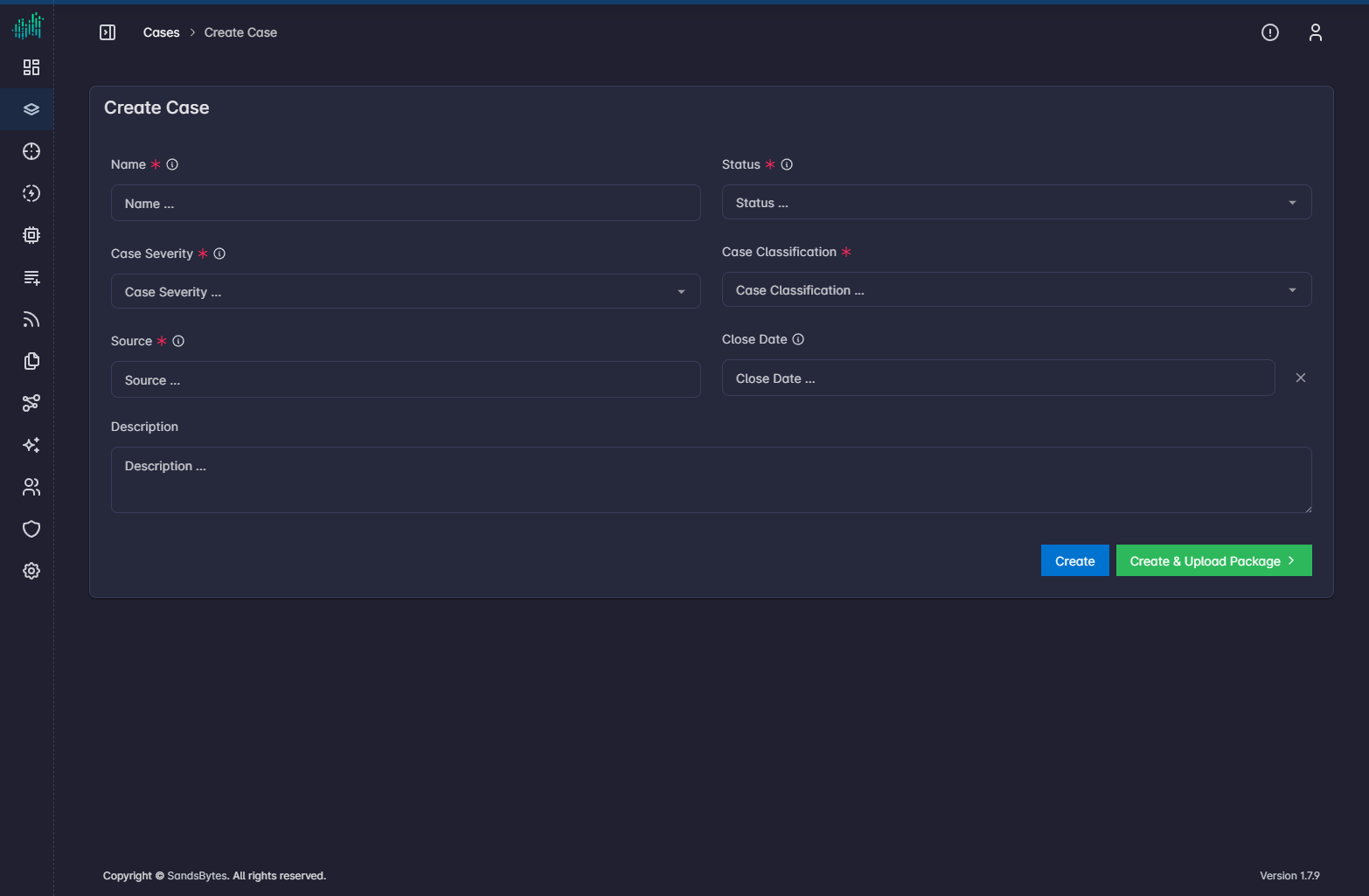
- Fill the required fields, then choose one of the two submit actions.
| Field | Required | What to enter |
|---|---|---|
| Name | Yes | A unique title, for example INC-2026-0412. |
| Status | Yes | NEW, IN_PROGRESS, PENDING, or CLOSED. |
| Case Severity | Yes | Critical, High, Moderate, or Low. |
| Case Classification | Yes | Malware Infections, Phishing Attacks, Denial of Service, Data Breaches, Insider Threats, or Other. |
| Source | Yes | Who or what discovered the incident. |
| Close Date | No | Leave empty for an open case. |
| Description | No | Scope and context for the investigation. |
Administrators can add more fields under Settings → Forms. Those custom fields appear on this form.
| Button | Result |
|---|---|
| Create | Saves the case and returns you to the case list. |
| Create & Upload Package | Saves the case and opens Upload & Process on the new case. |
- Open the case from the list to continue.
Use a shared naming convention (for example
INC-YYYYMMDD-short-title) so search and dashboards stay readable.
After you create the case
- Assign members from the case header.
- Ingest evidence with Process a triage package.
- Hunt with Start hunting.
- Produce a report with Generate a report.
See Create and edit for the full field and edit flow.