

Cases
Create and edit a case
Case metadata, submit actions, and member assignment.
Create
- Open Cases.
- Click Create.
- Fill the form at
/UI/cases/create.
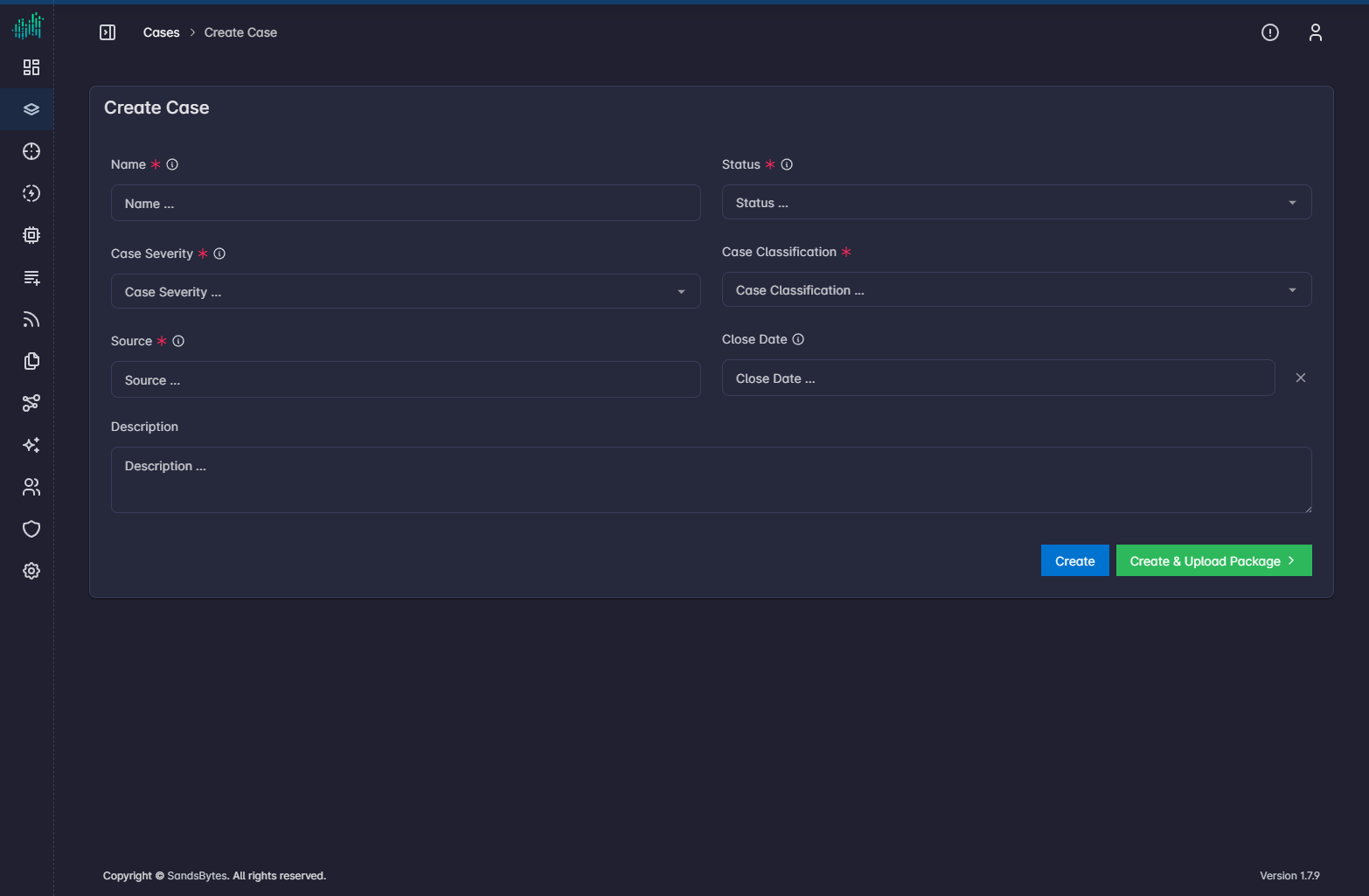
| Field | Required | Notes |
|---|---|---|
| Name | Yes | Unique title. |
| Status | Yes | NEW, IN_PROGRESS, PENDING, CLOSED. |
| Case Severity | Yes | Critical, High, Moderate, Low. |
| Case Classification | Yes | Classification list from Settings → Fields Options / default values. |
| Source | Yes | Discovery source. |
| Close Date | No | Use when the case is closed. |
| Description | No | Free text. Custom form fields appear below these standard fields when a Cases layout is active. |
| Button | Result |
|---|---|
| Create | Saves and returns to the list. |
| Create & Upload Package | Saves and opens Upload & Process. |
Edit
- From the list, click the edit icon in Actions.
- From an open case, click Edit Case in the header.
The same fields are available. Save to apply.
Assign members
Members appear as chips in the case header.
- Open the case.
- Click + next to the member chips.
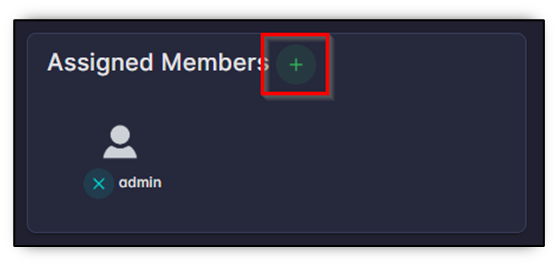
- Select a user and confirm.
To remove a member, click Remove user from case (the x on the chip). Task assignment only lists users who are already members of the case.