

Workflow Export and Import
Download workflows as ZIP from the system and import them into the same instance or other instances of SandsBytes.
This guide explains how to download (export) workflows from SandsBytes and how to import them again on the same or another instance.
What Export and Import Are For
Typical uses:
- Backup a workflow before large changes or upgrades.
- Copy workflows to another SandsBytes environment.
- Share a workflow package with a team or partner who uses the same product.
Use the zip produced by Export (or an equivalent package from your organization) when importing.
Exporting (Downloading) Workflows
You can download one workflow or several at once from the Workflows list.
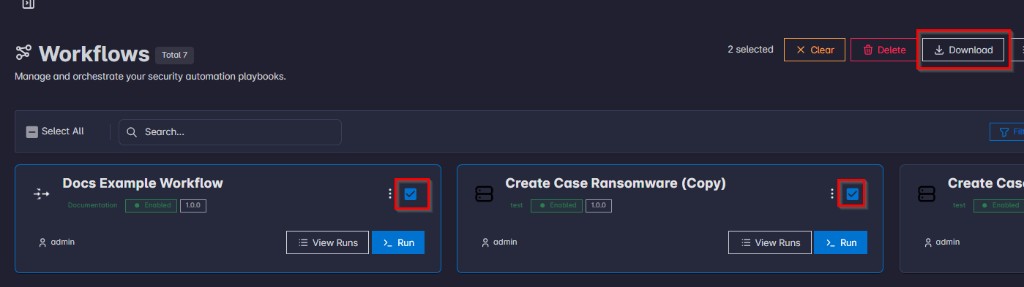
Download Several Workflows
- Select the workflows you want using the checkbox on each card (or use Select All if shown).
- In the header bar, click Download.
- Your browser saves a file named
workflows_export.zip.
When the download completes, you should see a short success notification.
Download a Single Workflow
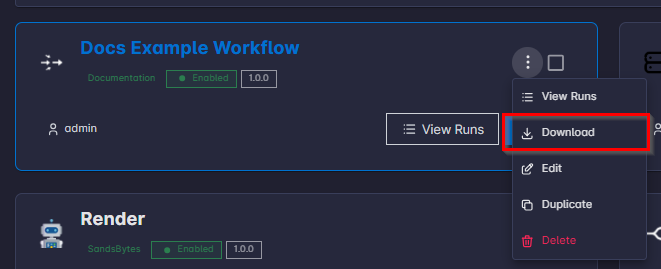
- On the workflow card, open the ⋮ (more) menu.
- Click Download.
- Your browser saves a file named
workflow_<name>.zip, where<name>comes from the workflow name (special characters are simplified for the filename).
Importing Workflows
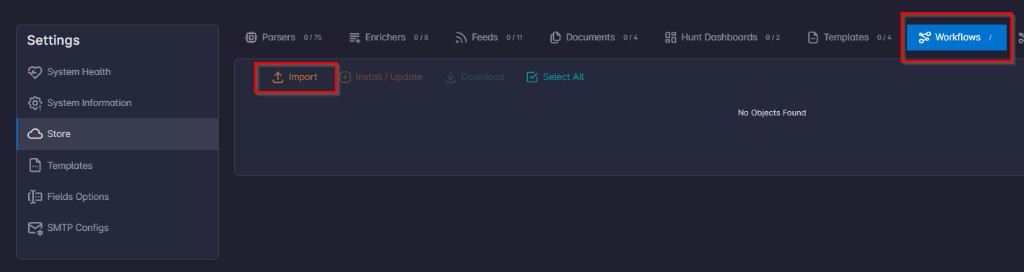
Import is not on the Workflows screen. You import through Store.
- Open Settings.
- Open the Store tab.
- Select the Workflows sub-tab.
- Click Import.
- Choose a
.zipfile from your computer.
Note: The file picker selects one zip file. That archive may contain multiple workflows; you do not choose individual workflows inside the zip in this step—the application processes all workflow packages it recognizes in the file.
After the upload finishes, a results dialog shows the outcome per workflow (for example, installed, updated, or skipped). Read that dialog if something did not appear on your Workflows list as expected.
If a Workflow Already Exists
If a workflow in the zip has the same identifier as one already on your instance, the application may skip the import when your current copy is already at the same version or newer. In that case the results dialog usually explains that the copy on the server is already up to date.