

Workflow Execution
Run workflows from the Workflows list, follow live progress, then browse historical runs and open full run details.
This guide explains how to start workflow runs, follow progress, list previous executions, and open the workflow run details page. It complements the dedicated guides on Workflow approvals, Workflow testing, and Workflow schedulers.
Run Workflow Steps
- Open Workflows and browse the workflow cards.
- On the workflow you want, choose Run (terminal icon).
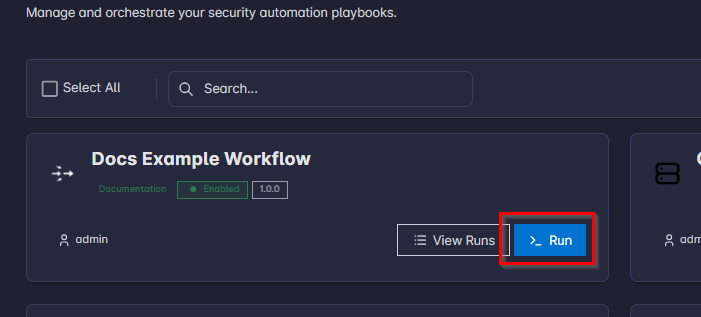
- A dialog opens with the parameter form for that workflow.
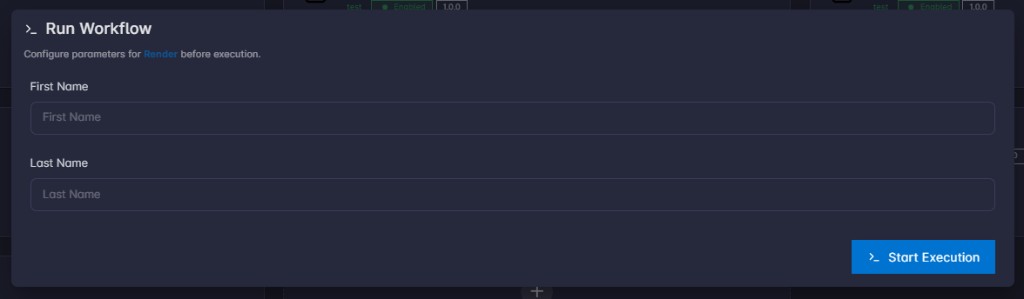
- Fill in required and optional fields, then submit to start the run (click
Start Execution). - The dialog stays open and shows live updates: overall status, percent progress, and (when relevant) which steps are running, waiting for approval, or finished.
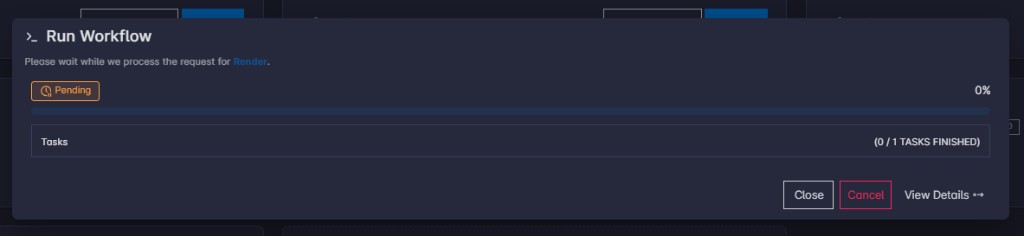
- If the workflow includes approval steps, the dialog surfaces approve and reject actions (and optional comments) when a step is waiting for you—subject to your role. For where this appears in the UI and how to approve or reject, see Workflow approvals.
- When the run reaches a finished state, you can review per-step outcomes in the same flow before closing the dialog.
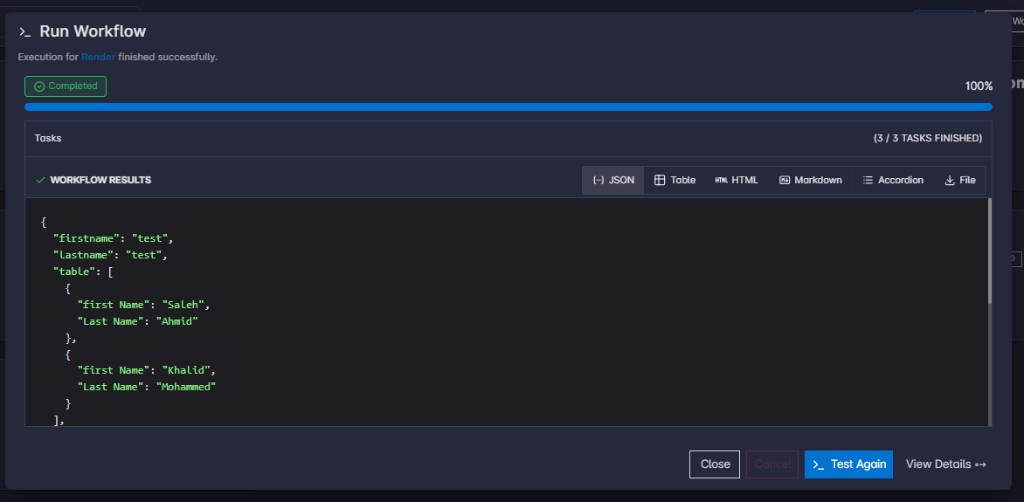
Status Labels You May See
| Status | Meaning (User-Facing) |
|---|---|
| Pending | Run is queued or not yet started. |
| Running | Run is in progress. |
| Completed | Run finished successfully. |
| Failed | Run stopped due to a step failure. |
| Cancelled | Run was cancelled. |
| Waiting for Approval | Run is paused until someone approves or rejects a step. |
| Rejected | An approval step was rejected. |
| Error | Run ended in an error state (treat similarly to a failed run when investigating). |
Historical Runs
The Workflow runs page is where you list previous executed workflow runs (and any that are still in progress).
List Previous Runs
- Open Workflows.
- Start the list in either of these ways:
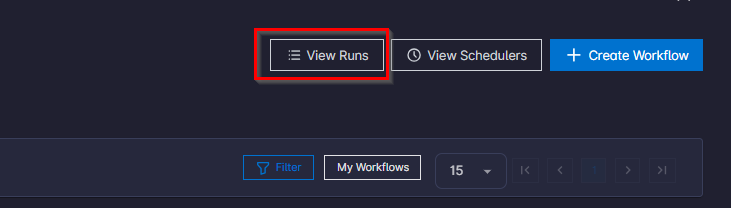
Use View Runs in the header or toolbar to see Workflow runs across workflows (within what your account can access).
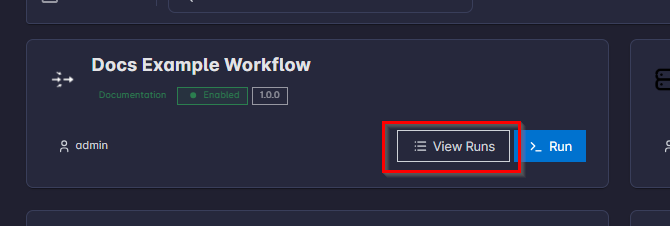
On a workflow card, use View Runs to open the same page scoped to that workflow only, so you only see previous runs for that automation.
- Find the execution you care about in the Workflow runs table.
- Hover on the specific execution row, a
View Detailsaction will appear, click on it to show the run details page.

Run Detail Page (View Details)
This page shows the full workflow execution details including tasks, arguments, results, debug, cancel, progress, etc.
Note: The tasks list only shows tasks once they are scheduled in the queue to execute. At the start, only Start appears; other tasks are added as the workflow runs, depending on the workflow.
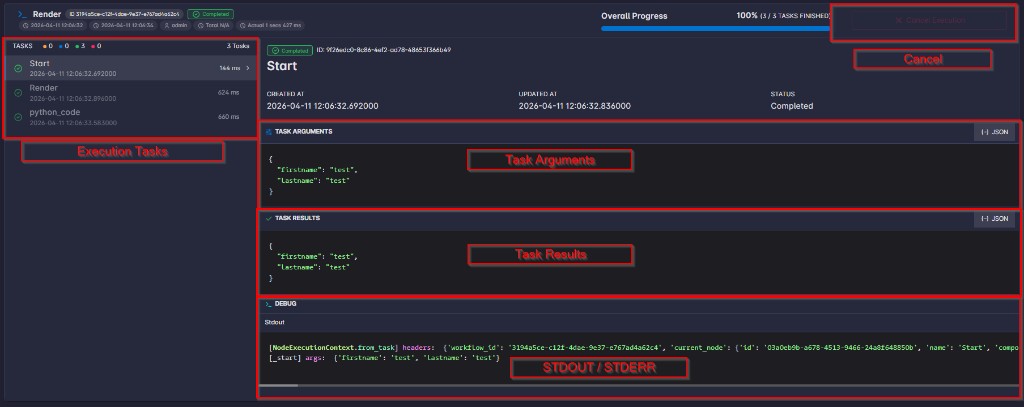
Tip: The page updates while the run is active, so you can leave the start dialog and still monitor the same run here. When the run finishes, this page remains the place to review results and history.
Permissions
Your administrator assigns capabilities in the workflows permission group. What you can do in the Workflows area—list workflows, open the editor, start runs, open View Runs, open View Details, cancel runs, and similar—depends on those assignments.
Common capability names include LIST_WORKFLOWS (browse workflows), RUN_WORKFLOW (start a run from the workflow card and use Run Test in the editor), and UPDATE_WORKFLOW (edit workflow graphs). Exact names and which actions they cover may vary; confirm with your administrator.
Workflow Testing
Run Test for the full workflow, single-node Test Run, and the test session (Active Session, Show Session, Clear Session) in the workflow editor.
Workflow Approvals
The approval component covers where approvals show, how approval steps are defined, and how to approve or reject waiting runs.