

OpenCTI
Configure OpenCTI CSV feeds and ingest them as SandsBytes Feeds for indicator enrichment.
Introduction
OpenCTI is a threat intelligence platform (TIP) for storing and sharing indicators, observables, and related knowledge.
SandsBytes Feeds currently ingest CSV only (from a URL or an uploaded file). The recommended integration path is OpenCTI Data → Data sharing → CSV feeds: OpenCTI regenerates a CSV file on a schedule and exposes it at an HTTP URL that SandsBytes can poll.
OpenCTI also supports TAXII collections and live streams. Those deliver STIX or Server-Sent Events, not CSV, so they are not used for SandsBytes Feeds today. Prefer a CSV feed for this integration.
After the feed is collecting records, you can match them against case or pipeline data with a Feed Enricher.
Prerequisites
Before you start, confirm the following:
| Requirement | Details |
|---|---|
| OpenCTI platform | OpenCTI 5.x or 6.x+ with indicators and/or observables already populated |
| OpenCTI capabilities | Manage Data sharing to create CSV feeds; also Manage credentials if you need a public feed URL |
| Network path | SandsBytes must reach the OpenCTI CSV feed URL (HTTPS recommended) |
| SandsBytes access | Permission to create and edit feeds under Feeds |
| Auth decision | Choose a public CSV URL or a restricted URL that requires an OpenCTI API token in request headers |
Auth recommendation
Prefer a restricted CSV feed and pass an OpenCTI Bearer token from SandsBytes request headers. Use a public feed only when the URL is protected by network controls and the data markings allow broader exposure.
Configure OpenCTI to export a CSV feed
Step 1: Open CSV feeds
- Sign in to OpenCTI with a user that can manage data sharing.
- Go to Data → Data sharing → CSV feeds.
- Create a new CSV feed.
Step 2: Name, interval, and filters
Configure the feed so it exports only the indicators you want in SandsBytes:
| Setting | Guidance |
|---|---|
| Name | Clear name, for example SandsBytes IoCs or High-score indicators |
| Refresh interval | How often OpenCTI regenerates the CSV. Align this with how often SandsBytes should poll (see Run Every... later) |
| Filters | Narrow by entity type (Indicator / Observable), score, labels, markings, or other criteria your team uses for actionable IoCs |
Step 3: Entity types and column mapping
Select the entity type(s) to include, then map CSV columns to attributes. For SandsBytes matching, include at least one column that holds the raw IoC string (hash, IP, domain, URL, and so on).
Recommended columns for indicator use:
| CSV column (example header) | Typical OpenCTI attribute | Purpose in SandsBytes |
|---|---|---|
value | Indicator / Observable value | Feed Key — value used to match records |
pattern_type or entity_type | Pattern or entity type | Context / dynamic tags |
score or confidence | Score / confidence | Context / dynamic tags |
created or modified | Timestamps | Freshness metadata |
labels | Labels | Context / dynamic tags (d:labels) |
Column names in the generated CSV become the field names SandsBytes stores. Use stable, simple headers (no spaces if possible) so Feed Key and tag references stay predictable.
Step 4: Access control
- Restricted (default): only authorized OpenCTI users or tokens can download the CSV. In SandsBytes, add an
Authorizationrequest header with a valid OpenCTI token. - Public: the CSV URL is reachable without authentication. Requires the Manage credentials capability when enabling public sharing, and you must select a user whose markings and rights define what the feed can expose.
Step 5: Copy and verify the CSV URL
- After saving, copy the generated CSV feed URL from OpenCTI.
- Verify the response is CSV with a header row. For example:
curl -sS -H "Authorization: Bearer <OPENCTI_TOKEN>" "<CSV_FEED_URL>" | headYou should see a header line (for example value,score,labels,...) followed by data rows.
CSV feed size limit
OpenCTI CSV feeds default to a cap of about 5,000 entries (typically the most recent matching entities). If your filter set is larger, tighten filters, split feeds by type or label, or accept that only the newest matching rows are shared.
Add the OpenCTI export in SandsBytes
Step 1: Create a feed
- In SandsBytes, open Feeds from the sidebar.
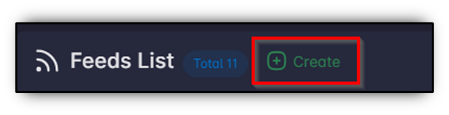
- Click Create.
Step 2: Feed Information
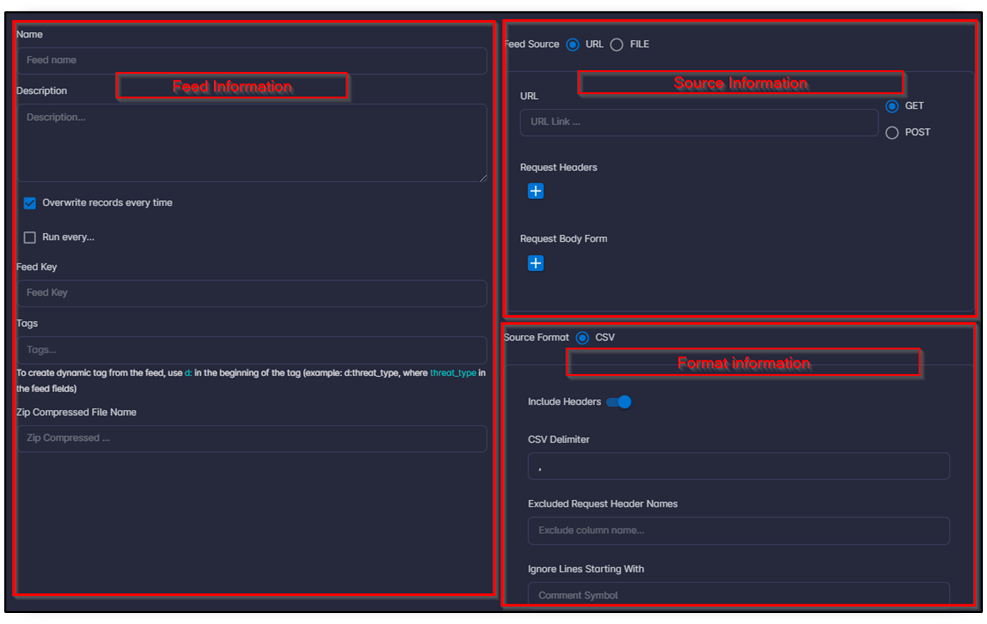
| Field | Suggested value for OpenCTI |
|---|---|
| Name | For example OpenCTI Indicators |
| Overwrite Records Every Time | Leave disabled for large feeds so syncs add only new rows; enable only when you need a full replace each run |
| Run Every... | Match or slightly exceed the OpenCTI CSV refresh interval |
| Feed Key | CSV column that holds the IoC string (commonly value) |
| Tags | Static tags such as OpenCTI, plus dynamic tags like d:score or d:labels when those columns exist |
| Zip Compressed File Name | Leave empty for a normal OpenCTI CSV URL |
Step 3: Source Information
Use Online (URL):
| Field | Value |
|---|---|
| URL | The OpenCTI CSV feed URL |
| Method | GET |
| Request Headers | If the feed is restricted: Authorization = Bearer <OPENCTI_TOKEN>. Optionally set Accept = text/csv |
| Request Body Form | Leave empty for a simple GET download |
Ensure the URL returns the CSV body directly (no interactive login page or HTML redirect).
Step 4: Format Information
OpenCTI CSV feeds include headers and use comma delimiters in typical setups:
| Field | Value |
|---|---|
| Include headers | Enabled |
| Add CSV columns headers | Only needed if the file has no header row |
| CSV Delimiter | , (default) |
| Excluded Request Header Names | Exclude columns you do not need stored |
| Ignore Lines Starting With | # if the source ever emits comment lines |
| Trim Characters | Use if values are wrapped in quotes after split (for example trim ") |
Step 5: Save and verify
- Click Create (or save). SandsBytes triggers a sync after create/edit.
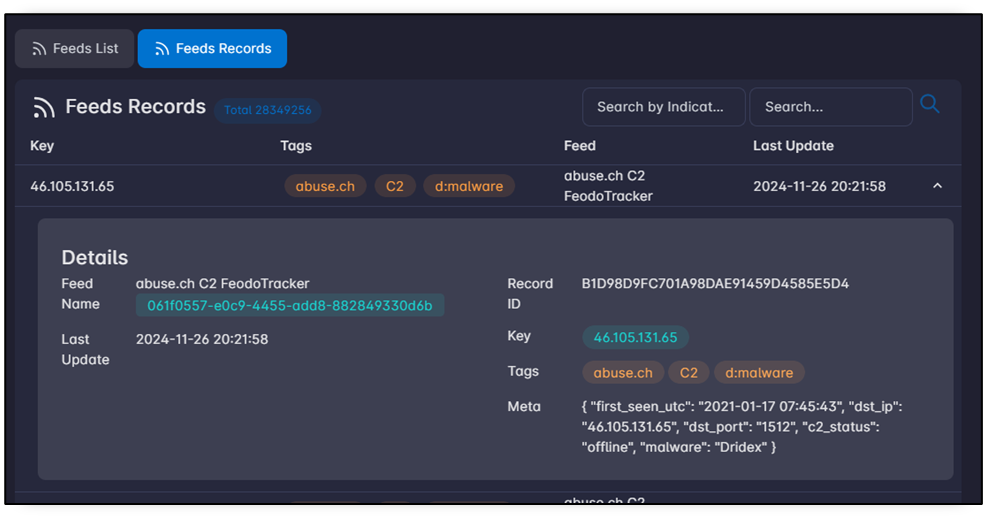
- Open the Feeds Records tab and confirm rows appear.
- Search by indicator using a known OpenCTI
valueto validate the Feed Key mapping.
Note
Once you create or edit the feed, it triggers the sync operation to update the feed.
Optional: enrich records with the feed
To apply OpenCTI matches to processed records, create a FEEDS enricher:
- Follow Create Enricher.
- Set Enricher Type to
FEEDS. - Point
keyat the record field that holds the IoC (hash, IP, domain, and so on). - Set
metato the destination metadata path (often used for alert context).
Matching against feeds is case insensitive.
Troubleshooting
| Symptom | What to check |
|---|---|
| HTTP 401 / 403 | Token missing or invalid; feed not public; user/token lacks access to the shared data or markings |
| Empty CSV or zero SandsBytes rows | OpenCTI filters too strict; no entities created/modified in the refresh window; markings hide data from the feed user |
| Sync fails or non-CSV body | URL points to UI/login HTML; wrong path; TLS or network block from SandsBytes to OpenCTI |
| No matches in enricher / search | Feed Key column name does not match the CSV header; IoC lives in a different column than value |
| Header / parse errors | Delimiter mismatch; Include headers setting wrong; unexpected quote wrapping (use Trim Characters) |
| Missing older indicators | OpenCTI ~5,000 entry cap — split or narrow the CSV feed |
Related
- Feed Management — field reference for create, sync, and search
- Feed Sources — other curated sources
- Create Enricher — Feed Enricher configuration