
Users and Roles Management
Manage users, roles, permissions, assignments, and account security in SandsBytes.
Users and Roles Management
The Users and Roles Management component enables administrators to create user accounts, define roles, and manage role-based access permissions.
Before you start
Make sure your account has permission to manage users, roles, and permissions. If role or permission changes do not appear immediately, log out and log in again to refresh the user session.
Create User Account
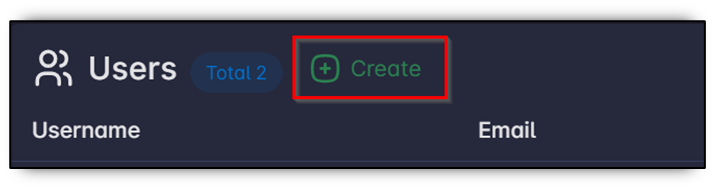
Open the Users page from the sidebar, then click Create to create a new user account.
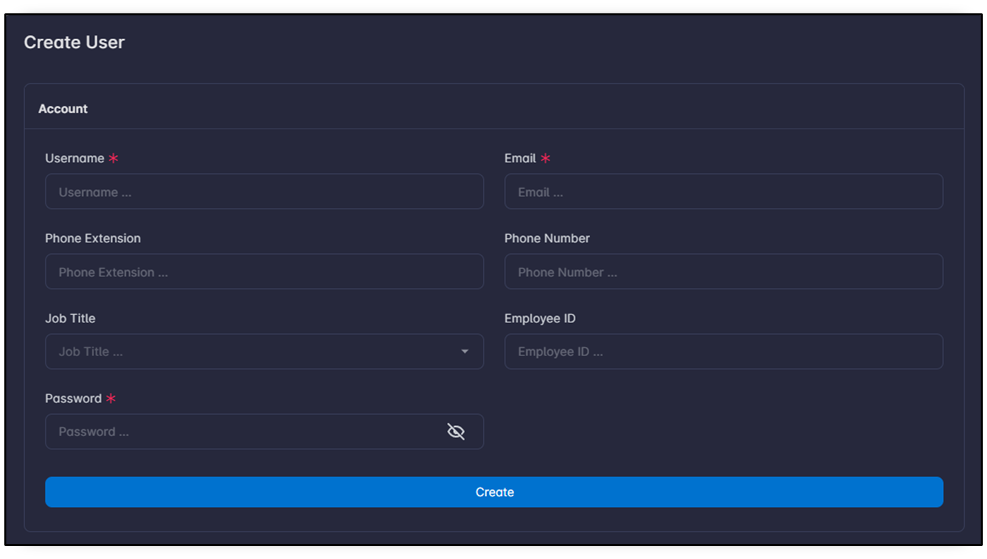
Fill in the new account information.
Note
Password should be complex:
- At least 8 characters
- At least one number
- At least one special character
- At least one uppercase letter
- At least one lowercase letter
Submit the form.
Assigning User to Roles
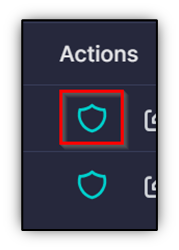
After creation, add the user account to specific roles by clicking the Add Role button from the users table.
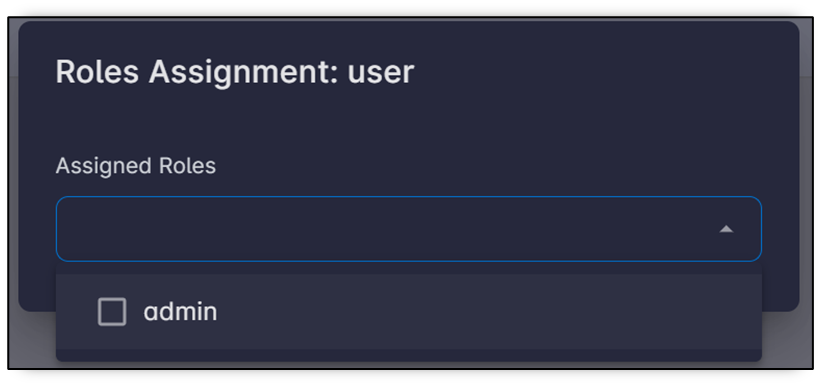
Select one or more roles for the account. Once a role is selected, it is added directly to the account. Then close the dialog.
Create New Role
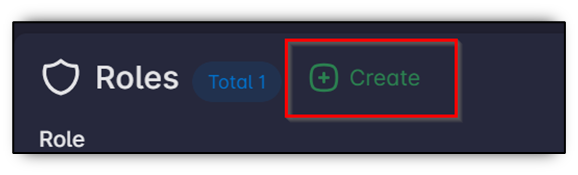
From the sidebar, click Roles, then click Create.
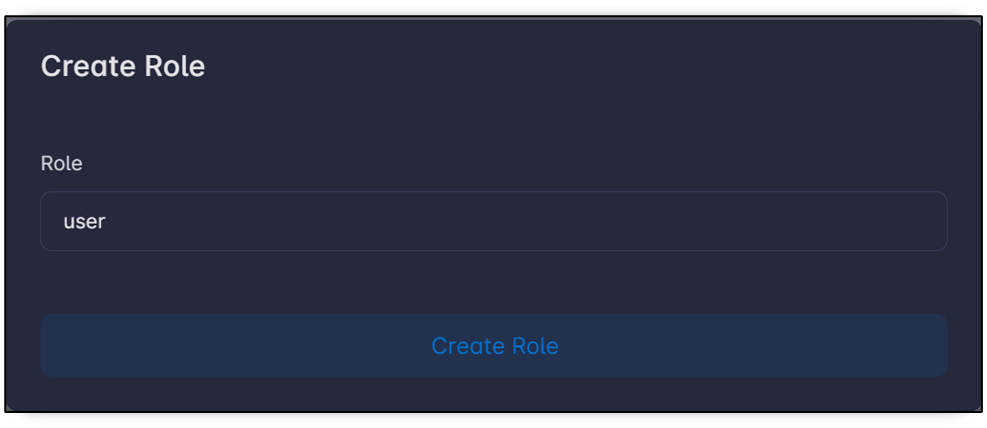
Enter a role name, then save.
Grant Permissions to Role
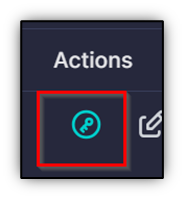
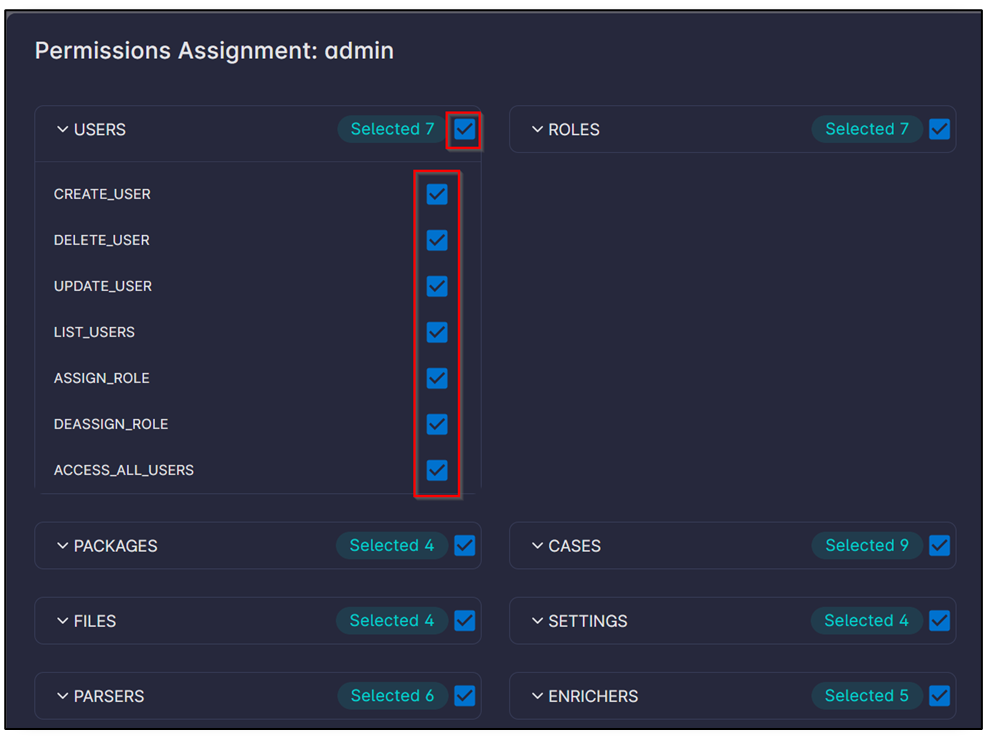
By default, a new role does not have any permissions. To add permissions, click the Add Permissions button from the roles table.
Select each required permission for the role. Once selected, it is added directly to the role.
User Profile
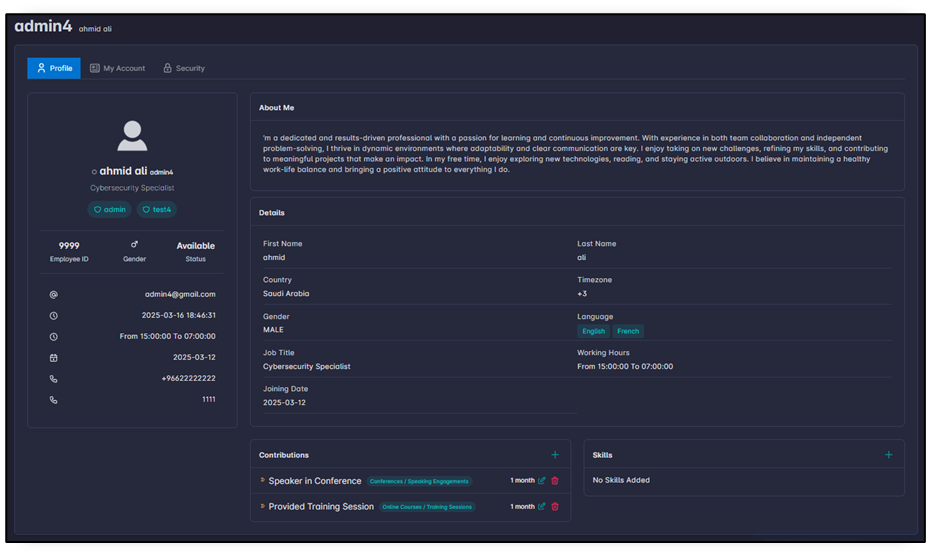
The User Profile page provides a more comprehensive overview of employee information such as:
- Contact details (email, phone, timezone, availability hours)
- Job-related information (job title, joining date)
- Language preferences
- Professional contributions (for example conferences and training sessions)
- Skills and other relevant metadata
This information offers better context for team collaboration, personnel tracking, and role-specific assignments within the system.
Password Reset
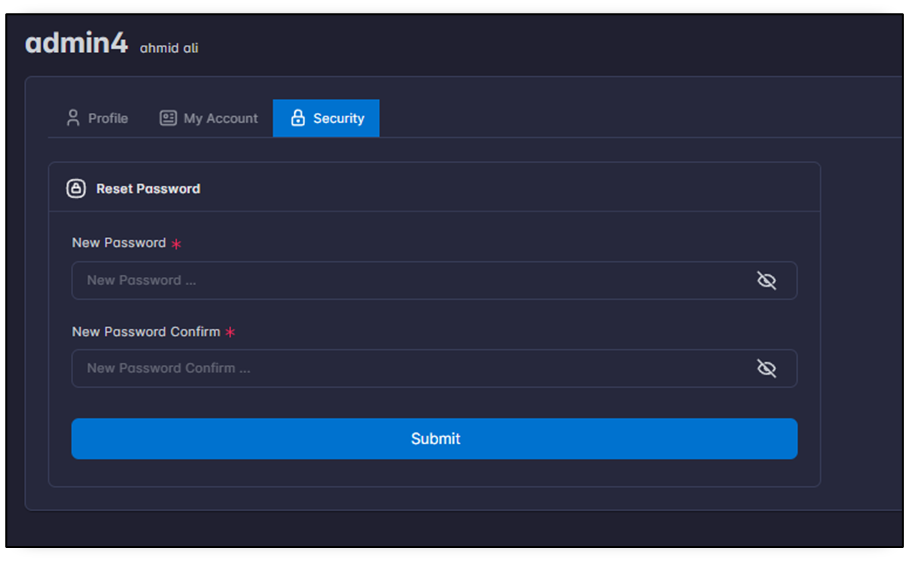
To reset your password, click your profile icon in the top-right corner of the UI and select Profile from the dropdown menu.
On your profile page, open the Security tab and use the Reset Password form. Fill in the required fields to update your password securely.