

Feed Management
Create, sync, and search feed definitions and feed records in SandsBytes.
Feeds Management
Feeds Management helps you collect external threat or indicator data (from URLs or uploaded files), normalize it, and store it as searchable feed records.
Its purpose is to keep indicator data continuously updated so matching records can be enriched with feed context, such as tags and source metadata.
Create Feed
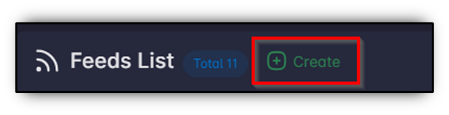
First open the Feeds page from the sidebar, then click Create.
Once the create page is displayed, you will see three types of inputs:
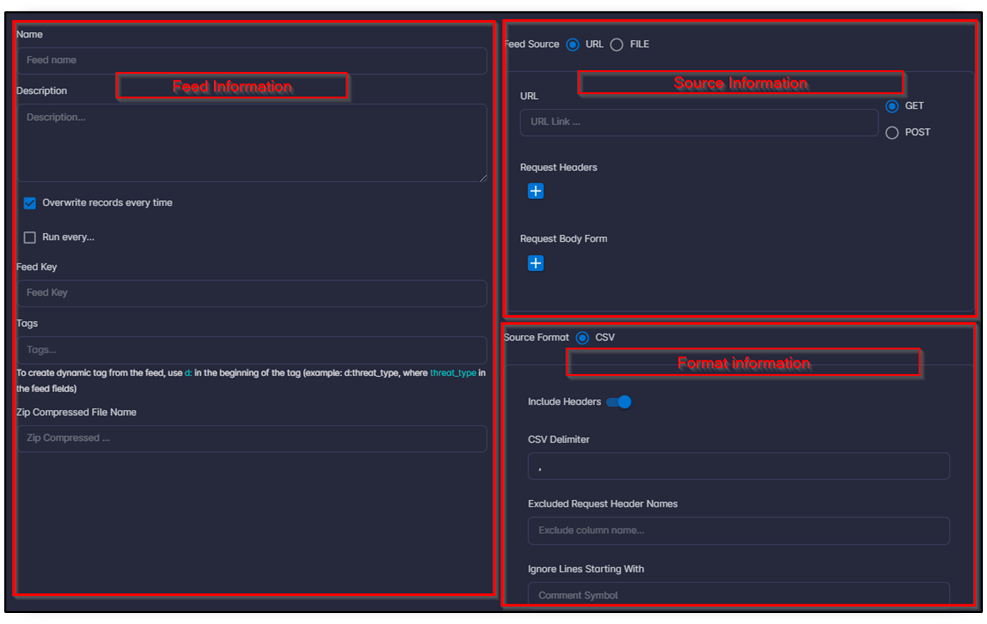
Feed Information
| Field | Description |
|---|---|
| Name | Feed name. You can use any feed name. This value is added to the alerts.name field in triggered records. |
| Overwrite Records Every Time | If enabled, it deletes all records in the feed each time updates are triggered. If the feed is large, enabling this is not recommended. If disabled, the feed updates incrementally and adds only new feed records. |
| Run Every... | Specify the period to trigger updates. Usually this depends on the indicator type (domain, hash value, IP address, and so on) and the update frequency from the source. |
| Feed Key | Indicator used to match records with the feed. Example: if source fields are MD5, categorization, and last_update, choose which field should be used for matching (for example MD5). The feed key can be any value; it is not limited to hash, IP, or domain values and can match any string value. |
| Tags | Specific tags for the feed. If a record matches the feed, tags are added to the processed record. This helps provide additional context. Example: add Whitelisted for matching records. You can also add dynamic tags from feed values. Example: if source fields include categorization, add tag d:categorization, where d: means dynamic tag value. |
| Zip Compressed File Name | Optional field. If the source feed is provided as a file inside a compressed zip, the system decompresses the file and uses this filename as the source feed to read from. Example: if provided feed is feed.zip containing feed.csv, set this value to feed.csv. |
Source Information
Source Information defines how the system collects feeds. There are two approaches:
- Online (URL): provide the URL of the feed to download.
- URL: provide the feed URL (
httporhttps) and ensure the URL supports direct download (no timer, restriction, or redirect). - Method:
POSTorGET. - Request Headers: headers required to download the feed (
user-agent,authorization, and so on). - Request Body Form: if the feed requires a specific body form, provide it.
- URL: provide the feed URL (
- Offline (FILE): upload the feed as a file.
- File: select the file from the local machine.
Format Information
To let the system understand the provided feed, fill in the format information fields. Currently, the system supports CSV format only.
- CSV format: collected feeds from URL or FILE in CSV require:
- Include headers: if CSV includes column headers, enable this. If not, provide a header name for each column.
- Add CSV columns headers: provide column headers if CSV does not include headers (order is important).
- CSV Delimiter: default is
,, but you can change it. - Excluded Request Header Names: by default, the system stores all column values for a CSV row. Exclude columns that are not required.
- Ignore Lines Starting With: if source feeds include commented lines, ignore them by providing the comment symbol (for example
#). - Trim Characters: trim specific characters from field values after splitting rows by delimiter. Example: if row is
"value1","value2"and delimiter is",", trim the first"and last"from each value.
Note
Once you create or edit the feed, it triggers the sync operation to update the feed.
List Collected Feeds
To list collected feeds, open the Feeds page from the sidebar, then click the Feeds Records tab.
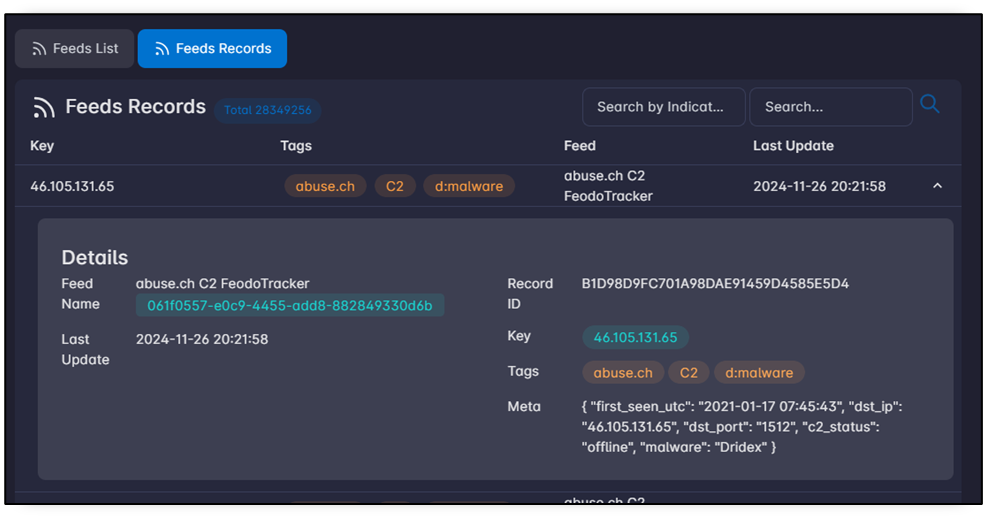
You will see the total number of collected feeds. To display feed information, click a feed row.
To search, there are two fields:
| Search | Description |
|---|---|
| Search by Indicator | Search by a specific indicator (based on the defined Feed Key), such as 8.8.8.8 or example.com. This is faster than Search but supports exact value only. It does not support contains matching. Example: example.com does not match evil.example.com. |
| Search | Search for a specific value in all stored feed fields, not only Feed Key. This search supports contains matching. |