
Overview
Event-driven automation rules, conditions, actions, and rules event logs.
This guide describes Automation Rules (event-driven automations) and Rules Event Logs (audit trail of rule runs). It reflects how the feature works in the SandsBytes application today.
In This Section
- Events — what system events are and how to select event category and event type in the rule wizard.
- Conditions — Active, time frame, and payload filter checks before the action runs.
- Actions — Email, Webhook, and Workflow actions and how to configure them.
Introduction
Automation rules watch for specific events in the system (for example, when a record is created, updated, or deleted). When an event fires, the system:
- Finds active rules that match the event’s category and type.
- Checks each rule’s schedule (active days and time window).
- Evaluates conditions against the event payload (the data associated with the change).
- For every match, runs the rule’s action (for example: send email, call a webhook, start a workflow).
Creating or Editing a Rule
To create a rule:
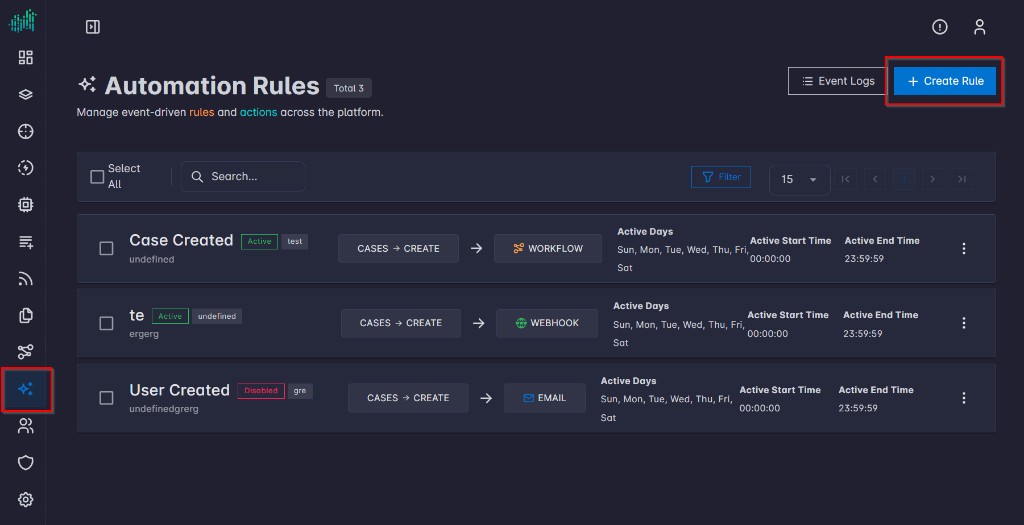
- In the main sidebar, select Rules (sparkles icon).
- In the page header, choose Create Rule. A stepped form opens.
Edit an existing rule
To edit a rule, open the row menu on the list and choose Edit; the same stepper loads with the rule’s saved values.
Rules Event Logs
Purpose
Each log row is one rule execution attempt for an event:
- When it started (
triggered_at) and finished (resolved_at). - Event (
event_category,event_type). - Rule (
rule_id) and snapshot (rule_info: name, conditions, renderedaction_config, schedule flags, etc.). - Payload for the matched event.
- Action type and status; on failure, an error message.
Status Values
| Status | Meaning |
|---|---|
in_progress | Action running or interrupted before finalization (normally transitions). |
success | Handler finished without an exception. |
failed | Handler or config rendering failed; see error. |
Browsing Event Logs Page
To open the list of event logs:
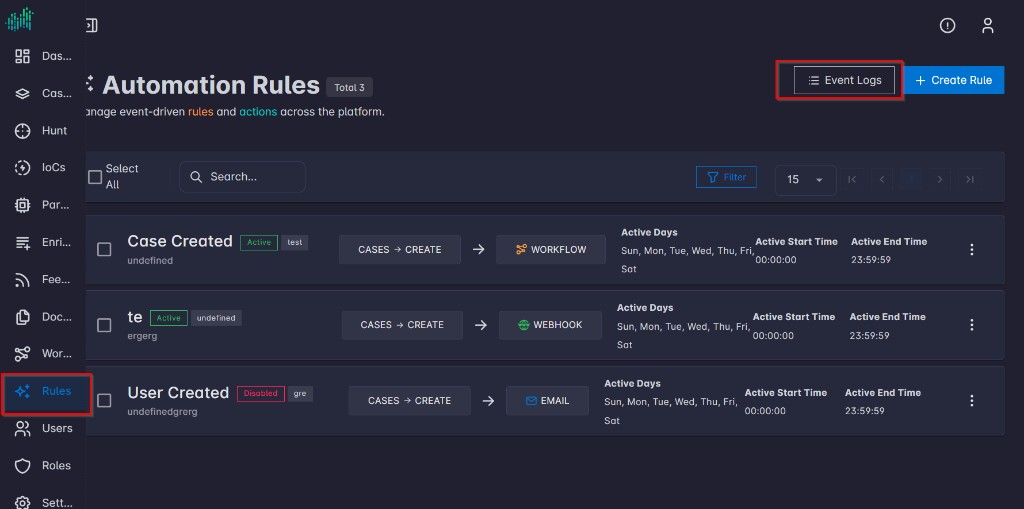
- In the sidebar, go to Rules.
- In the top right of the page header, click Event Logs.
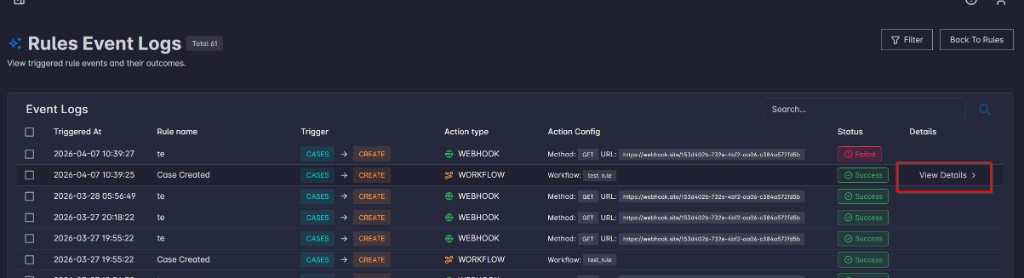
A list of all event attempts will be shown in the table. Hover over any row and click View Details.
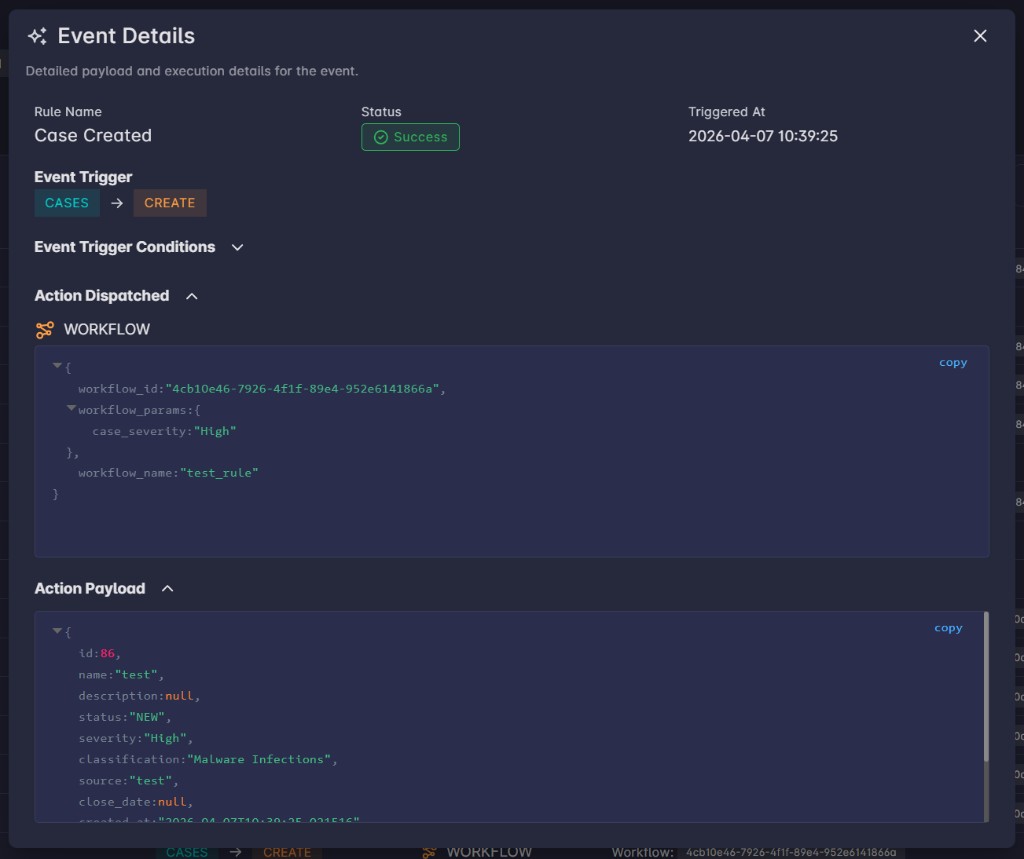
This will display the window for Event Details, which shows all the rule and event details, including the event information, conditions, and payload.