

Get Started
Generate a report
Create a PDF or DOCX case report from templates.
Reports pull data from the case and render it with a template from Settings → Templates.
Prerequisites
- The case has the content you want in the report (findings, evidence, timeline, and so on).
- At least one active template exists under Settings → Templates in the
CASE_REPORTcategory. The product ships PDF and DOCX templates, including Arabic variants.
Generate
- Open the case.
- Open Reports.
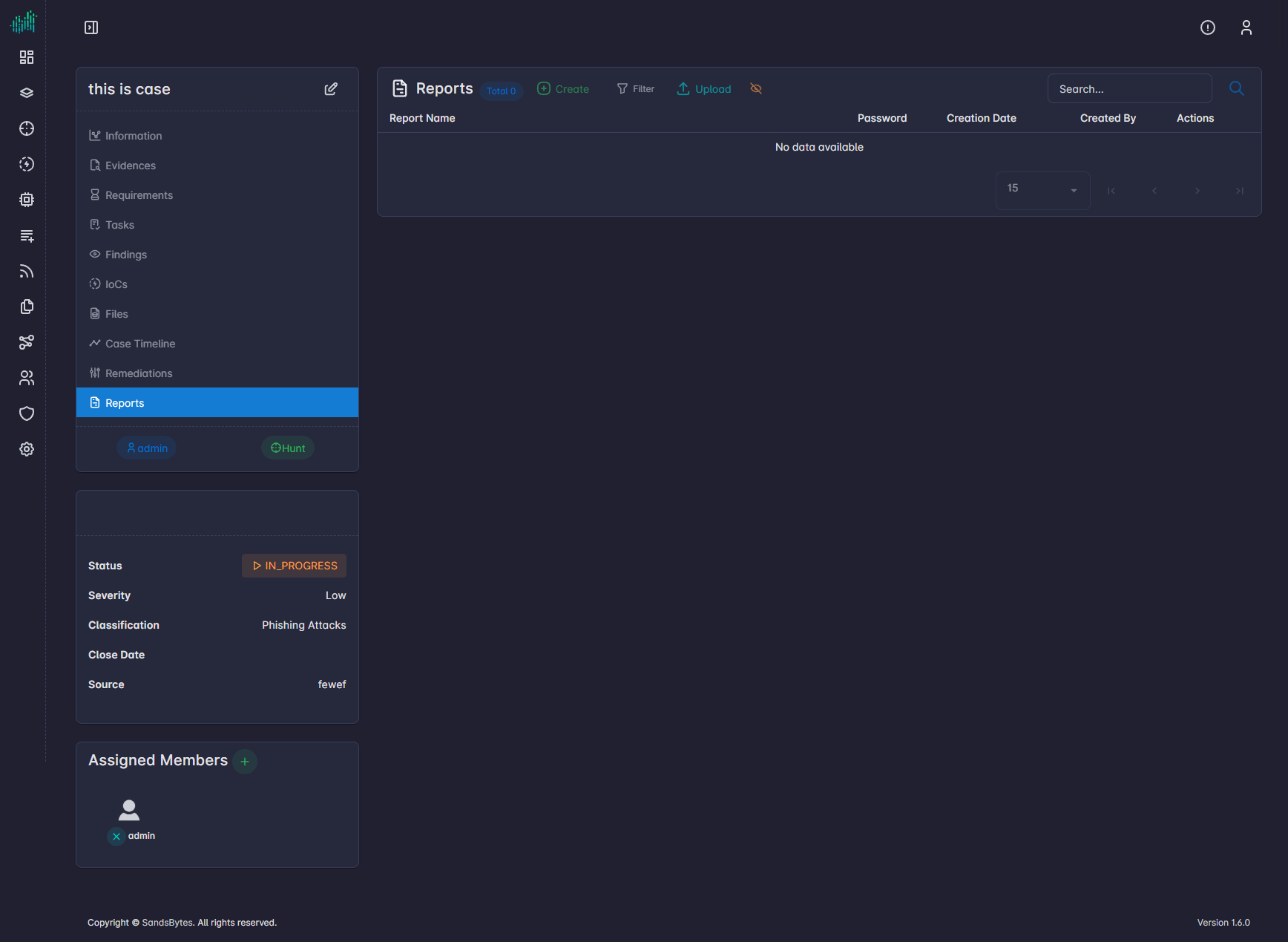
- Click Create.
- Choose a template and a report name. A password is optional. The name can use Jinja syntax.
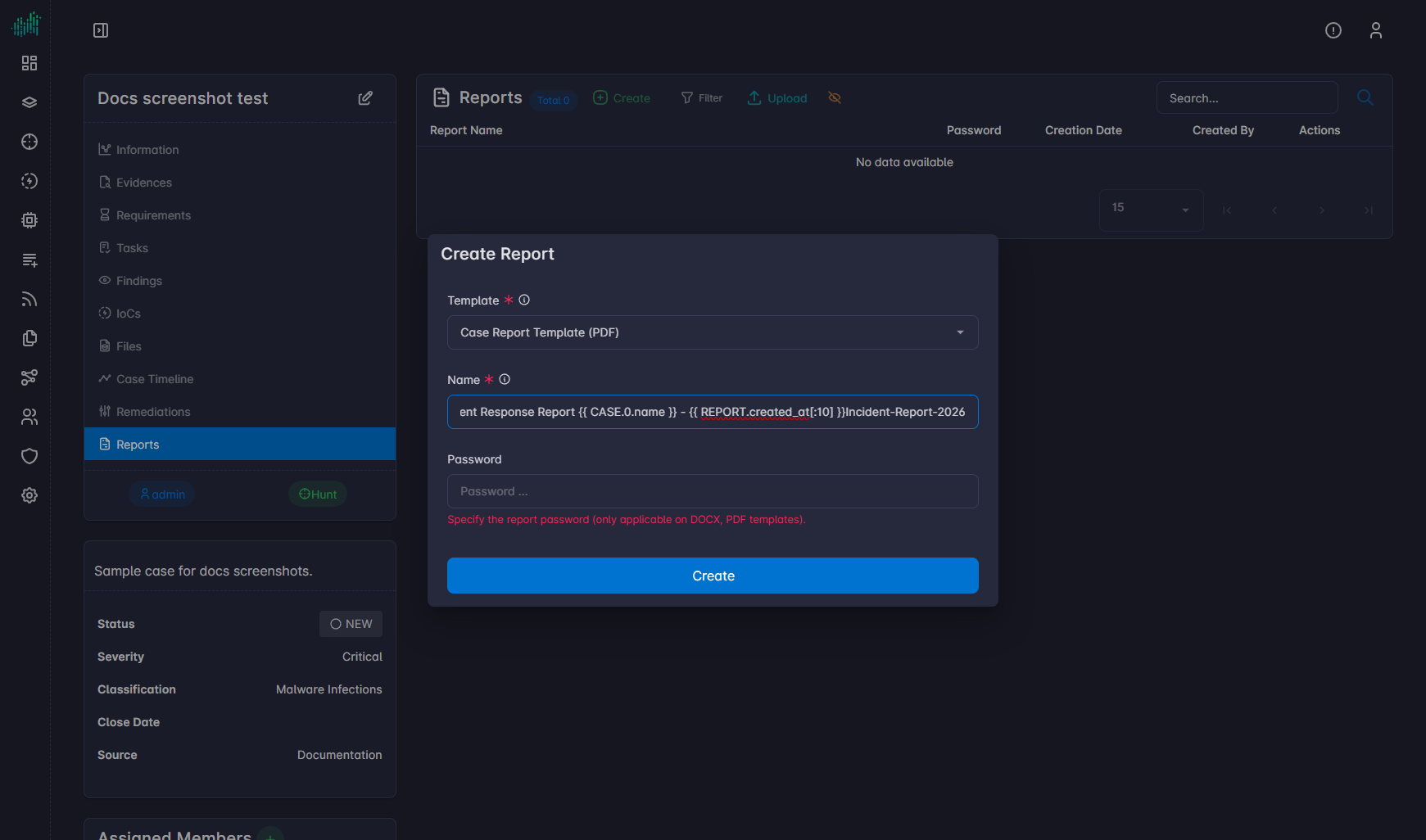
- Submit. Generation is asynchronous. The new row appears in the list with type, size, password flag, and author.
- Click Download when the report is ready.
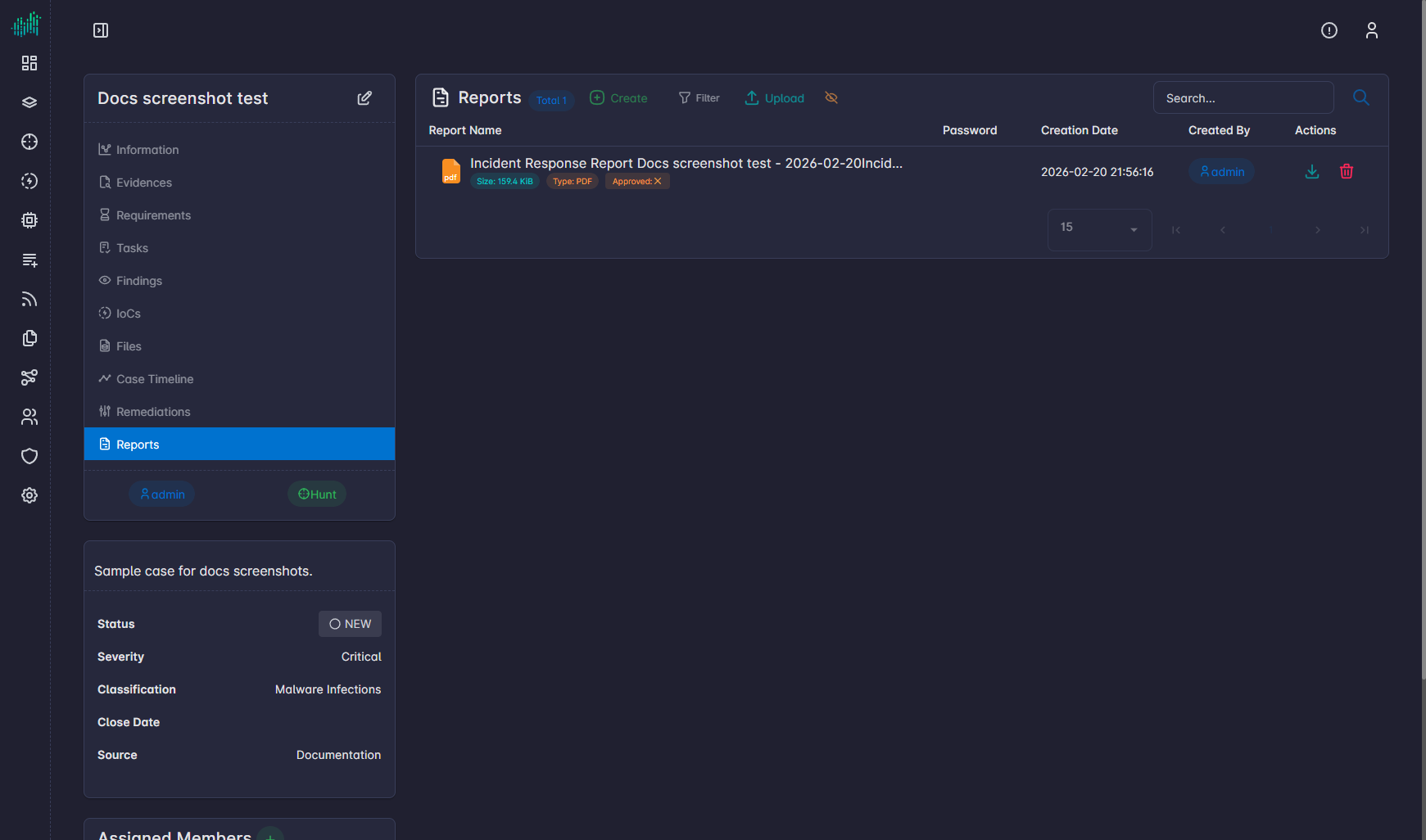
Use Upload to attach a report that was produced outside SandsBytes. Use Show to preview a stored report. Mark the report Approved when review is complete.