

Create Case
Initialize a new incident response case to begin tracking evidence, findings, and investigative tasks.
Initialization Flow
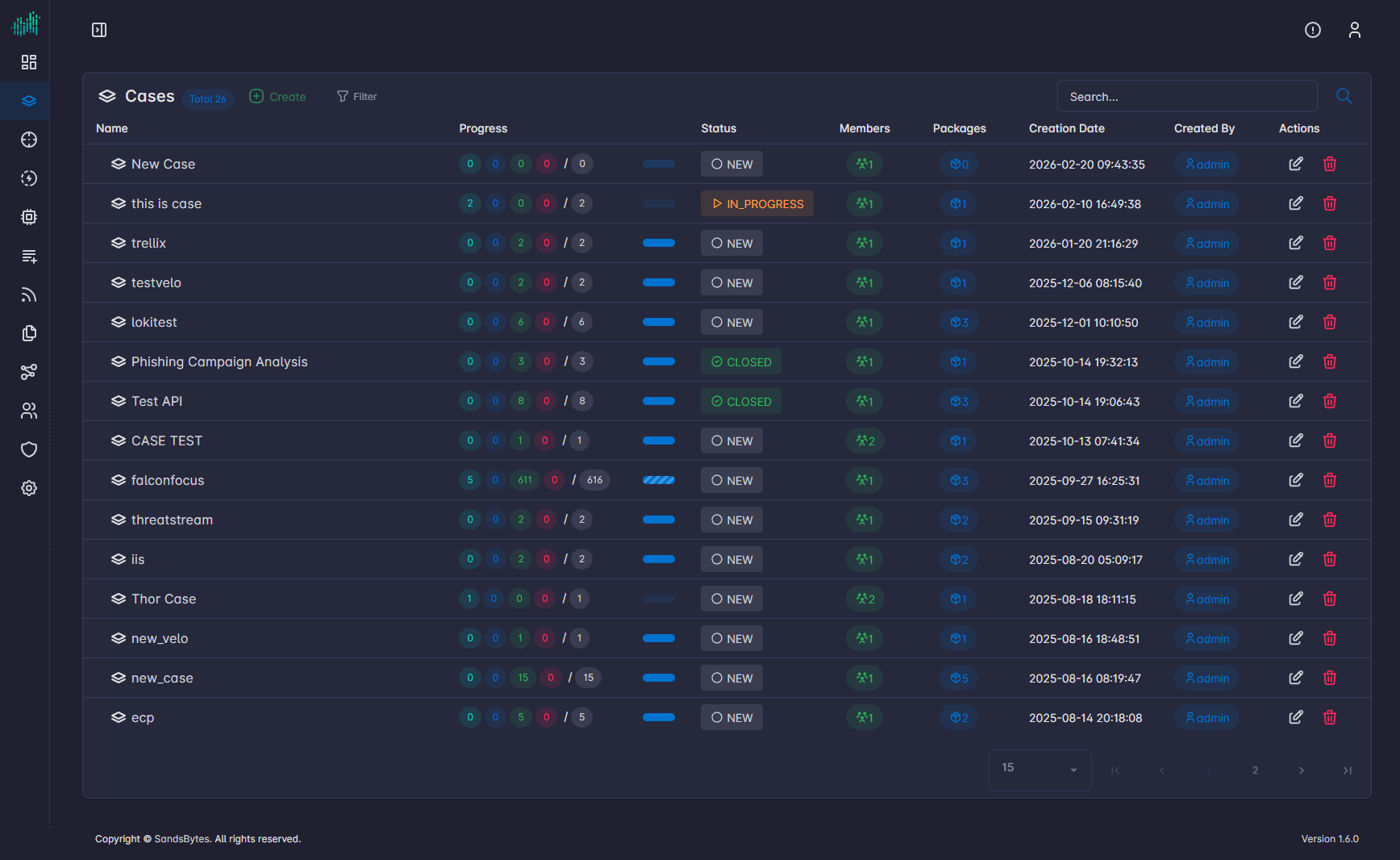
- Access Case Management: Click Cases in the sidebar to open the case repository.
-
Trigger Creation: Select New Case to open the initialization form.
-
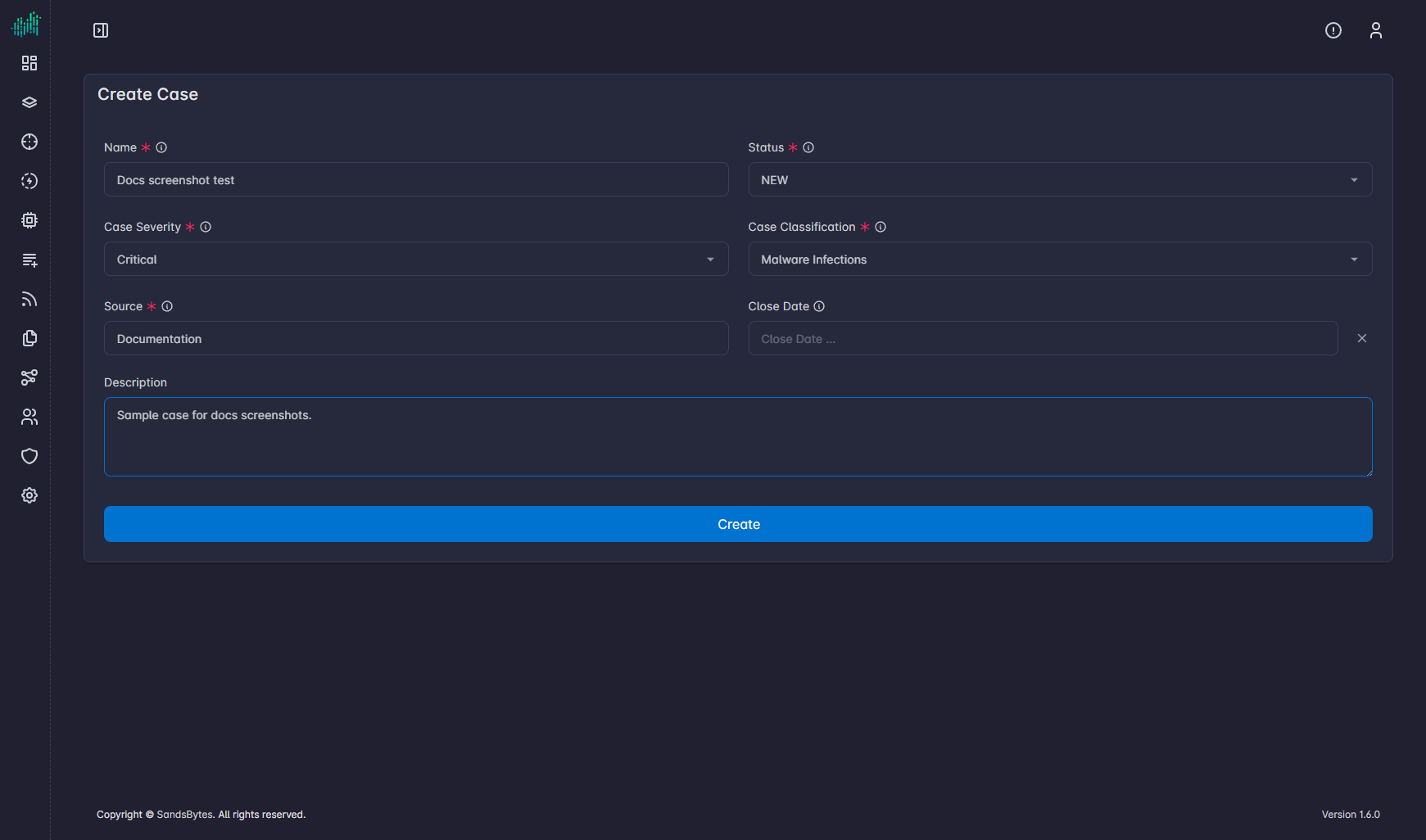
Define Metadata: Input the core parameters for the investigation. The form fields are:
| Field | Required | Description |
|---|---|---|
| Name | Yes | Unique, descriptive identifier for the case (e.g., INC-XXXXXX). |
| Case Severity | Yes | Severity level (e.g., Critical, High). Select based on impact. |
| Source | Yes | Who or what discovered the incident (e.g., team, system, report). |
| Status | Yes | Current state of the case (e.g., NEW, IN_PROGRESS, CLOSED). |
| Case Classification | Yes | Category of the case (e.g., Malware Infections). Based on impact or findings. |
| Close Date | No | When the case was closed. Leave empty for active cases. |
| Description | No | High-level context, scope, or notes for the investigation. |
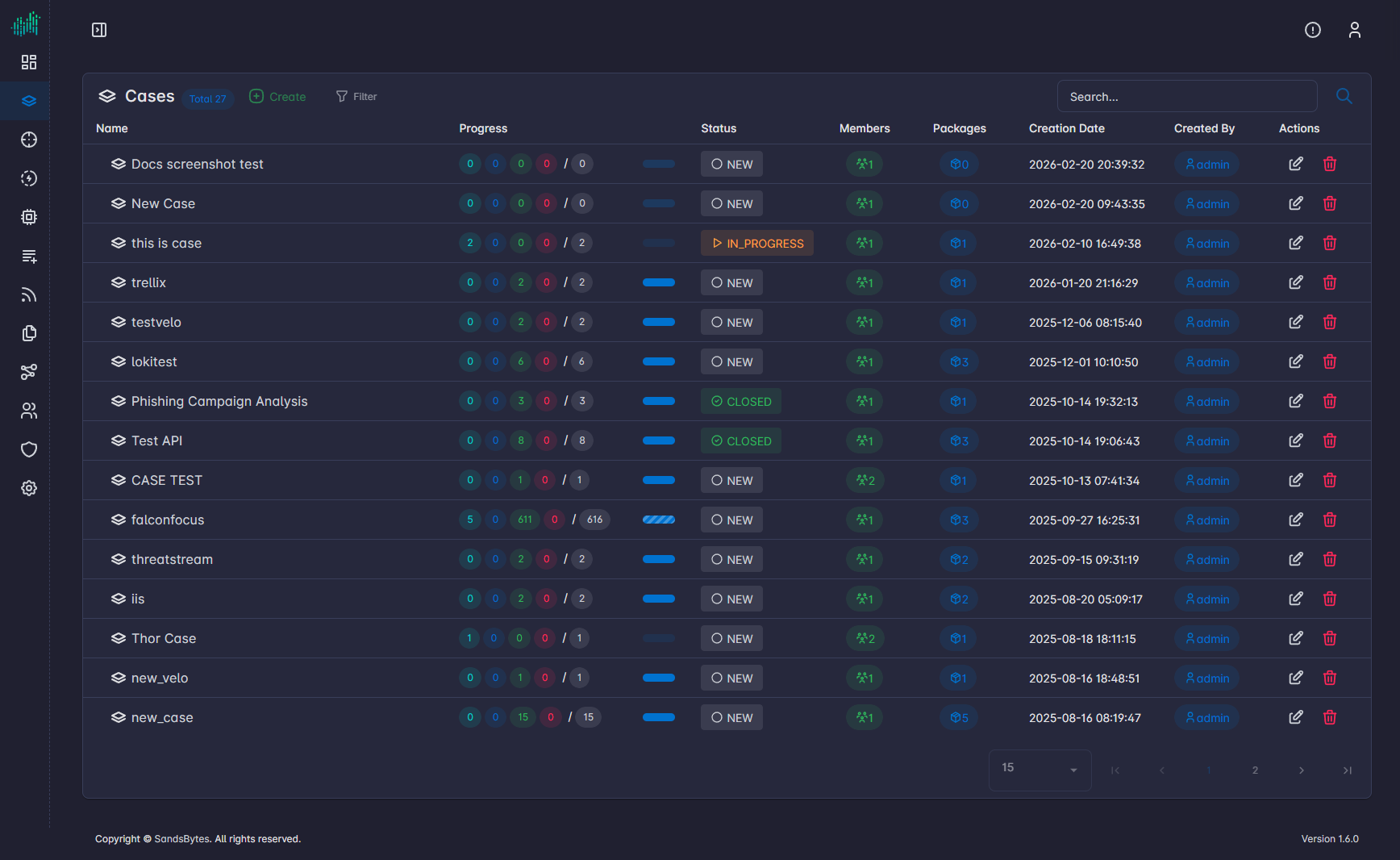
- Commit Changes: Click Create. The system creates the record and redirects you to the case list.
Post-Creation Actions
Once the case is initialized, proceed to populate the investigation data:
- Ingest Evidence: Upload artifacts and execute parsers via Process Triage Package.
- Define Requirements: Establish investigative leads and tasks from the Case Details view.
- Finalize Findings: Document conclusions and Generate Reports.
TIP
Use a consistent naming convention for Case Names (e.g., INC-YYYYMMDD) to ensure efficient filtering in global searches.
Authentication
Access the platform using the provided URL. If you are not authenticated, the system redirects you to the Login page.
Report Generation
Export investigative findings, evidence summaries, and IOCs into PDF or DOCX formats using case data and predefined templates. Reports are generated asynchronously based on the data populated within a specific case.