

Profile and security
Your account details, two-factor authentication, API keys, and signed-in devices.
Open the profile icon in the top bar, then Profile. The page is /UI/users/view/<id> and has three tabs.
| Tab | What it holds |
|---|---|
| Profile | Read-only summary: photo, roles, contact details, working hours, About Me, Details, Contributions, and Skills. |
| My Account | Editable account and detail fields. |
| Security | Two-factor authentication, password reset, API keys, and authenticated devices. |
My Account
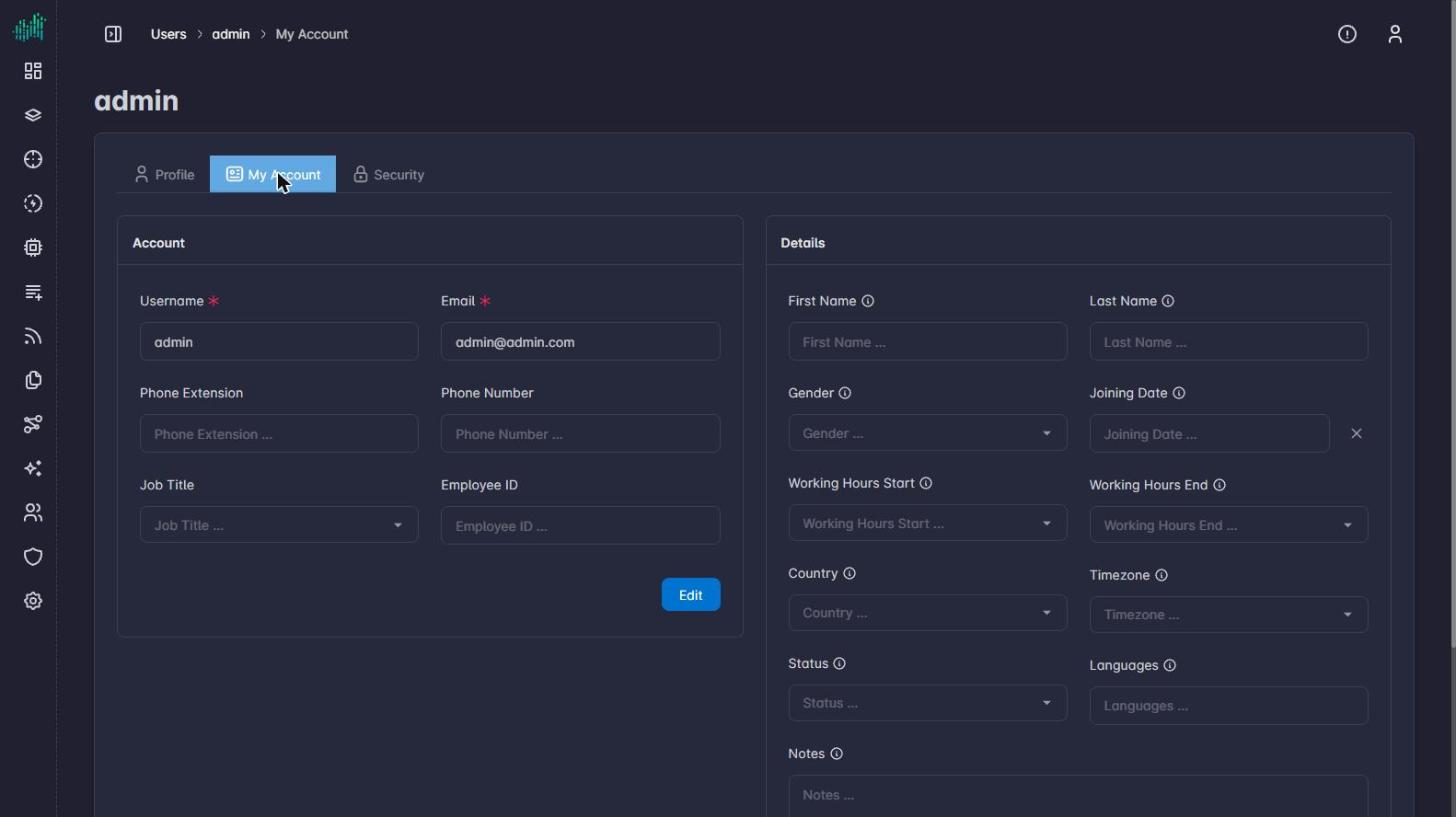
| Section | Fields |
|---|---|
| Account | Username, Email, Phone Extension, Phone Number, Job Title, Employee ID |
| Details | First Name, Last Name, Gender, Joining Date, Working Hours Start and End, Country, Timezone, Status, Languages, Notes |
Edit the fields and click Edit to save. Custom fields added under Forms for Users appear here too.
Two-factor authentication
The Security tab shows the state of two-factor authentication (Disabled or enabled). It uses an authenticator app (TOTP).
- Open Security.
- Click Enroll 2FA and follow the prompts in your authenticator app.
- After enrollment, sign-in asks for the code from the app.
Reset your password
- Open Security.
- Enter New Password and New Password Confirm.
- Click Submit.
The password must follow the rules on the Users page.
API keys
An API key lets a script or integration call the REST API as you, without your password. See API Docs.
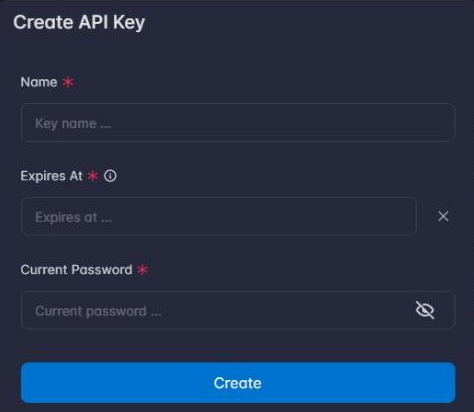
Create a key
- In Security, click the + in the API Keys panel.
- Enter a Name, an Expires At date, and your Current Password.
- Click Create.
- Copy the key when it is shown and store it somewhere safe.
Use a key
Send the key in the X-API-Key request header on every call:
curl -X GET "https://<host>/api/users" \
  -H "Accept: application/json" \
  -H "X-API-Key: sb_your_api_key_here"
The panel shows this example with your own host.
Manage keys
Each key in the list shows its name, the last characters of the key, whether it is Enabled, and its expiry, with the time remaining while it is valid.
| Control | Effect |
|---|---|
| Pause icon | Disables the key without deleting it. |
| Red bin | Deletes the key. |
A key acts with your permissions. Give each integration its own key with the shortest expiry that works, and delete keys you no longer use.
Authenticated devices
The Authenticated Devices panel lists the browsers and clients that signed in to your account: the device name, how it signed in (for example credentials), the address, and the last time it was seen. Click the red bin to remove a device you do not recognize.